

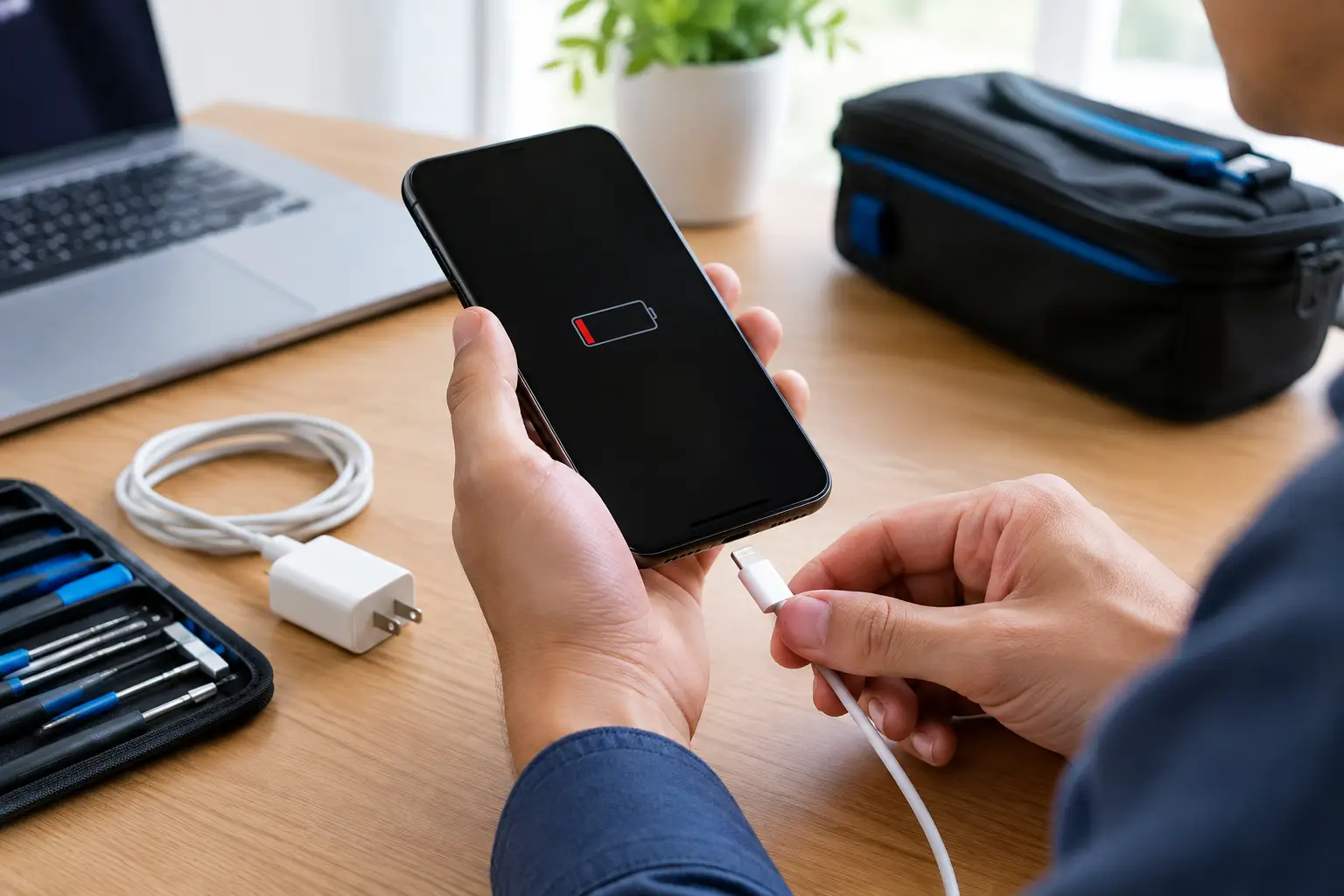

Your iPhone is at 3%, you plug it in, and nothing happens. Maybe the battery icon flashes, the charging symbol appears and disappears, or the phone only charges if you hold the cable at a certain angle. When an iPhone won’t charge, the problem is not always the battery – but it does need attention before a small issue turns into a dead phone, missed calls, or lost access to important accounts.
The good news is that several charging problems have simple causes. The less-good news is that continuing to force a damaged cable into the port or using the wrong charger can make the repair more expensive. Start with the safe checks below, then know when it is time to have a technician inspect it.
Start With the Charger, Cable, and Outlet
Before assuming the iPhone itself has failed, test the complete charging setup. Charging cables wear out faster than most people expect. Internal wires can break near the connector, even when the outside of the cable looks fine. A cable that charges intermittently, gets unusually warm, or only works when bent is not reliable.
Try a different known-good cable and wall adapter. If possible, use an Apple cable or a certified replacement from a reputable brand. Then plug the adapter directly into a working wall outlet instead of a computer USB port, power strip, car charger, or battery bank. Those other power sources can deliver inconsistent power or fail without obvious signs.
If your iPhone begins charging with another cable or adapter, you have found the issue. Replace the failed accessory rather than continuing to use it. Damaged chargers can create heat, slow charging, and connection problems.
Check the Charging Port for Pocket Lint
A charging port packed with lint is one of the most common reasons an iPhone will not charge properly. Phones spend plenty of time in pockets, purses, cars, and backpacks. Over time, lint gets pressed into the bottom of the Lightning or USB-C port. The cable may look inserted, but it cannot reach the contacts firmly enough to charge.
Look into the port under good lighting. If you see debris, turn off the phone first. Use a dry, non-metal tool, such as a wooden toothpick or a soft anti-static brush, to gently loosen visible lint. Work carefully and do not force anything into the port. Metal tools, liquids, compressed air used too aggressively, and sharp objects can damage the pins inside.
A clean port should let the cable click or seat securely. If the connection still feels loose, the port may be worn, damaged, or affected by corrosion. That is a repair issue, not something to solve by pushing harder on the cable.
Let a Completely Drained iPhone Recover
An iPhone with a deeply depleted battery may not immediately turn on when plugged in. Leave it connected to a known-good wall charger for at least 30 minutes. Watch for the low-battery image, Apple logo, or charging indicator.
If the phone stays black, try a force restart while it remains connected to power. The method depends on the model. On most newer iPhones, quickly press Volume Up, quickly press Volume Down, then hold the Side button until the Apple logo appears. On older models, the button combination is different.
Do not judge the battery after only a few minutes. A severely drained battery can need time before the phone has enough charge to start. If there is still no response after 30 to 60 minutes with a tested charger, the issue may involve the battery, charging port, display, or internal power system.
Why Your iPhone Won’t Charge Past a Certain Percentage
Sometimes the phone charges, but very slowly or stops around 80%. That does not always mean something is broken. iPhones can pause charging to manage temperature and help preserve battery health. If the phone is hot from gaming, navigation, direct sunlight, or charging under a pillow, remove the case and let it cool to room temperature before trying again.
Optimized Battery Charging can also delay a full charge based on your routine. This is intended behavior, especially overnight. But if the phone regularly stalls at the same percentage, drops rapidly after being unplugged, or takes hours to gain even a few percent, a weak battery is a likely cause.
Battery health matters most on older iPhones. As a battery ages, it holds less power and may struggle to accept a charge consistently. You can check Battery Health in your iPhone settings. A service message, unexpected shutdowns, or a maximum capacity that is significantly reduced are all signs that battery replacement may be the practical fix.
Watch for Water Damage and Corrosion
Water exposure can cause charging trouble right away or weeks later. A wet charging port may trigger a liquid-detection message, and the iPhone may refuse wired charging to prevent damage. If you see that alert, unplug the cable immediately.
Do not use rice, a hair dryer, or heat to dry the phone. Rice does not remove moisture from internal components, while high heat can damage seals, batteries, and delicate parts. Instead, place the iPhone in a dry, well-ventilated area with the port facing down and allow it to air dry. Avoid connecting a cable until the warning is gone.
Even after a phone appears dry, corrosion can develop inside the port or on internal connectors. If charging problems began after rain, a spill, a bathroom drop, or humidity exposure, professional inspection is the smart move. Fast action can sometimes prevent a minor water-damage issue from becoming a board-level repair.
Try Wireless Charging to Narrow Down the Problem
If your iPhone supports wireless charging, place it on a known-working wireless charging pad. Remove a thick case, magnetic wallet, pop grip, or anything else that may interfere with alignment.
If the phone charges wirelessly but not with a cable, the battery may be fine and the problem may be limited to the cable, port, or wired charging circuitry. If it will not charge either way, the cause could be a failing battery, software problem, or internal hardware issue.
Wireless charging can be useful as a temporary backup, but it is not a complete answer if the port is damaged. You may still need the port for data transfer, wired accessories, or reliable charging when you are away from a charging pad.
When a Software Issue Is Getting in the Way
Software is less often the cause, but it can contribute. Restart the phone, install any available iOS update once it has enough battery power, and check whether the phone is unusually hot or running an app that is draining power faster than the charger can replenish it.
A message such as “This accessory may not be supported” can point to an uncertified cable, debris in the port, or a worn connector. Repeated accessory warnings are worth taking seriously. Do not keep testing random cheap cables, especially if the connector feels loose or the phone heats up.
If your phone turns on but will not stay on long enough to update or back up, prioritize a repair assessment. A technician can determine whether the phone needs a battery, charging port, or deeper power repair without guessing.
Signs You Should Stop Troubleshooting at Home
A few symptoms mean it is time to put the charger down and get help. Stop using the phone if the battery is swollen, the screen is lifting away from the frame, the phone smells burnt, or it becomes extremely hot while charging. Do not puncture or press on a swollen battery.
You should also seek repair service if the charging port is visibly bent, the cable only works at a specific angle, the phone was exposed to liquid, or multiple tested chargers do not work. These are not problems a settings change will solve.
For customers in Aston, Havertown, Media, Springfield, and nearby Delaware County communities, CNA Computer Repair & Sales can inspect charging issues, explain the likely repair clearly, and help you avoid replacing a phone before it is necessary. A battery or port repair is often far more affordable than buying a new device, especially when the rest of the iPhone is still in good condition.
Your iPhone should charge without cable gymnastics, overheating, or uncertainty. If the basic checks do not restore a solid connection, getting it looked at promptly protects the device you depend on every day – and may save the photos, messages, and work stored on it.
Leave a Reply