

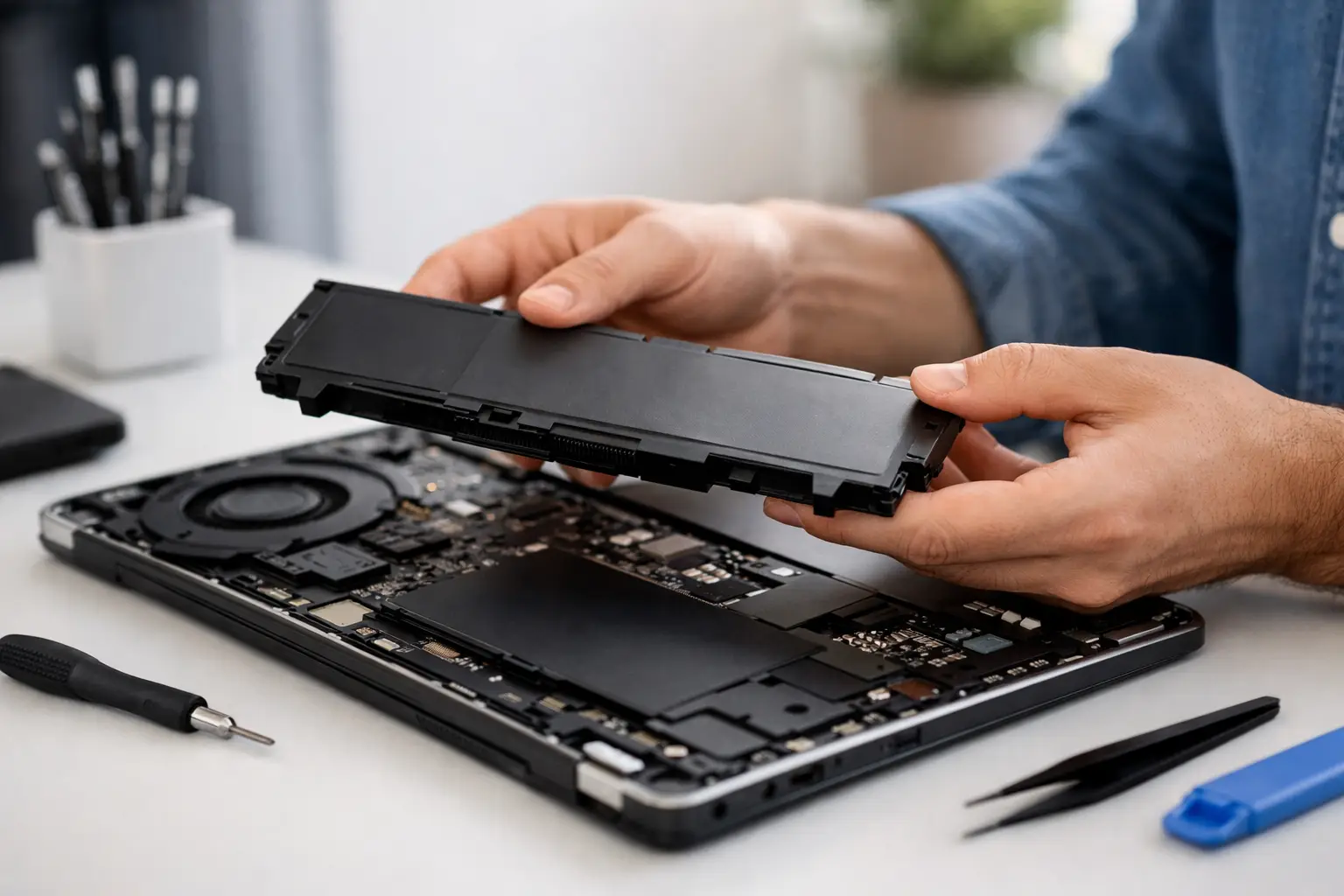

A laptop that dies at 40%, needs to stay plugged in all day, or gets hot during basic tasks is usually telling you the same thing – the battery is on its way out. If you are searching for how to replace laptop battery parts safely, the good news is that some models make it fairly simple. The catch is that plenty of newer laptops do not.
That is where a lot of people get stuck. On one machine, battery replacement is a five-minute job with a latch on the bottom. On another, you are dealing with hidden screws, delicate clips, adhesive, and a battery cable tucked near other sensitive components. Replacing the wrong way can damage the case, the charging system, or the motherboard. So before you order anything, it helps to know what kind of job you are actually dealing with.
How to Replace Laptop Battery Without Causing Bigger Problems
The first step is figuring out whether your laptop has an external or internal battery. Older business laptops and some budget models have removable batteries that slide out from the underside. Many newer Windows laptops and most MacBooks use internal batteries that require opening the device.
If your battery is removable from the outside, replacement is usually straightforward. Shut the laptop down completely, unplug the charger, flip the device over, release the battery locks, remove the old battery, and insert the new one. Once it clicks into place, connect the charger and power the system back on.
If the battery is internal, the job gets more technical. You will usually need a small screwdriver set, a plastic prying tool, and the exact replacement battery for your model. Exact matters here. A battery that is almost right is not right.
Before opening anything, confirm the full laptop model number. Do not rely on the brand name alone. “HP Pavilion” or “Dell Inspiron” is not specific enough because those product lines include many versions with different battery shapes, connectors, and screw patterns.
Signs Your Laptop Battery Really Needs Replacement
A bad battery does not always mean the laptop itself is failing. In many cases, the rest of the machine is fine and the battery is simply worn out from age and charge cycles.
Common signs include fast battery drain, random shutdowns, the laptop only working while plugged in, a battery that does not charge past a certain percentage, or a battery warning message in Windows or macOS. Another major red flag is swelling. If the bottom cover looks uneven, the trackpad feels raised, or the keyboard seems to bulge, stop using the laptop on battery power right away.
A swollen battery is not a wait-and-see problem. It can damage the case and internal parts, and it should be handled carefully. That is one situation where professional service is usually the safer move.
What You Need Before You Start
If you are handling the replacement yourself, get organized first. The biggest mistakes usually happen when people rush, use the wrong tools, or force parts that are meant to come apart gently.
You will want the correct battery, the right precision screwdriver, and a non-metal prying tool. A clean, well-lit surface matters more than most people think. Tiny screws are easy to lose, and mixed-up screws can crack a case or damage a board when you reassemble the laptop.
It is also smart to back up your data before you begin. Battery replacement should not affect your files, but anytime a device is opened up, there is some risk. If the laptop already has charging issues or liquid damage, the real problem may be bigger than the battery.
How to Replace Laptop Battery on an Internal-Battery Model
Start by shutting the laptop down fully. Unplug the charger and any accessories. If the machine has been running hot, let it cool first.
Next, remove the bottom cover screws. Some laptops hide screws under rubber feet, labels, or trim pieces. Once the screws are out, use a plastic pry tool to work around the edges of the panel. Do not jam in a metal screwdriver and twist. That is one of the fastest ways to crack a case or scar the housing.
Once the bottom cover is off, locate the battery. It is usually a large black or silver component secured with screws and connected to the motherboard by a cable. Before removing the battery, disconnect that cable carefully. Pull on the connector, not the wires.
Then remove the screws holding the battery in place. Lift the old battery out gently. If it feels stuck, do not force it. Some batteries are lightly adhered, and some models use stronger adhesive strips. Excess pressure can bend the battery or damage nearby components.
Set the new battery in place, reinstall the screws, and reconnect the battery cable. Before sealing the laptop back up, take a moment to make sure nothing else was knocked loose. Then reinstall the bottom cover and screws.
After reassembly, connect the charger and power the laptop on. In many cases, the system will recognize the new battery automatically. If it does not charge correctly right away, a BIOS update, battery driver refresh, or charging port inspection may be needed.
Common Mistakes to Avoid
The biggest mistake is buying a cheap, low-quality replacement battery just because it is easy to find. Price matters, but quality matters more. A poor battery can deliver short runtime, charging problems, overheating, or a shorter overall lifespan.
Another common issue is misdiagnosing the problem. Sometimes the battery is not the real failure. The charger may be bad, the charging port may be loose, or the motherboard may not be regulating power correctly. If your laptop does not recognize a known-good battery, the repair may go beyond simple replacement.
People also run into trouble by skipping model verification, using too much force on the case clips, or mixing up screw lengths during reassembly. That can turn a manageable repair into a more expensive one.
And if the old battery is swollen, punctured, or leaking, do not throw it in regular household trash. Damaged lithium-ion batteries need proper disposal.
When DIY Makes Sense and When It Does Not
If you have an older laptop with an easy-access battery, doing it yourself can save time and money. It is a practical fix for someone comfortable with basic hardware handling.
If you have a slim ultrabook, a MacBook, a laptop with hidden clips, or a battery showing signs of swelling, the trade-off changes. DIY might still be possible, but the margin for error gets smaller. The thinner and more compact the laptop, the easier it is to damage a connector, strip a screw, or crack the lower case.
There is also the question of turnaround. For some people, spending an evening hunting down the exact battery, tools, and instructions is worth it. For others, especially if the laptop is needed for work or school, fast professional service is the better value.
That is often the deciding factor. If the repair needs to be done quickly, correctly, and without guesswork, having a local technician handle it can save more than it costs.
A Smarter Option When the Battery Job Gets Complicated
Battery replacement sounds simple until the laptop is halfway open and one stripped screw stops everything. That happens more often than people expect. If your device has an internal battery, charging issues beyond the battery itself, or any sign of swelling, getting it checked by a repair shop is usually the safer route.
For local customers in Aston, Havertown, Media, Springfield, and nearby areas, CNA Computer Repair & Sales handles battery replacements for many laptop models and can help determine whether the battery is actually the issue. That matters because replacing a battery will not fix a damaged charging port or failing power circuit.
A good repair should be straightforward. You should know what is wrong, what it costs, and how fast it can be fixed. No guessing, no hidden fees, and no being told to replace the whole laptop when a targeted repair can keep it going.
After the Replacement
Once the new battery is installed, keep an eye on the first few charge cycles. Battery life should be stable, charging should be consistent, and the laptop should run without sudden shutdowns. If it still drains too fast, runs unusually hot, or refuses to charge properly, there may be another hardware or software issue involved.
A new battery can give a good laptop a lot more life, but only if the replacement is done carefully and the diagnosis is right from the start. If the job looks simple, take your time. If it does not, there is nothing wrong with handing it off and getting your laptop back working the way it should.
Leave a Reply