

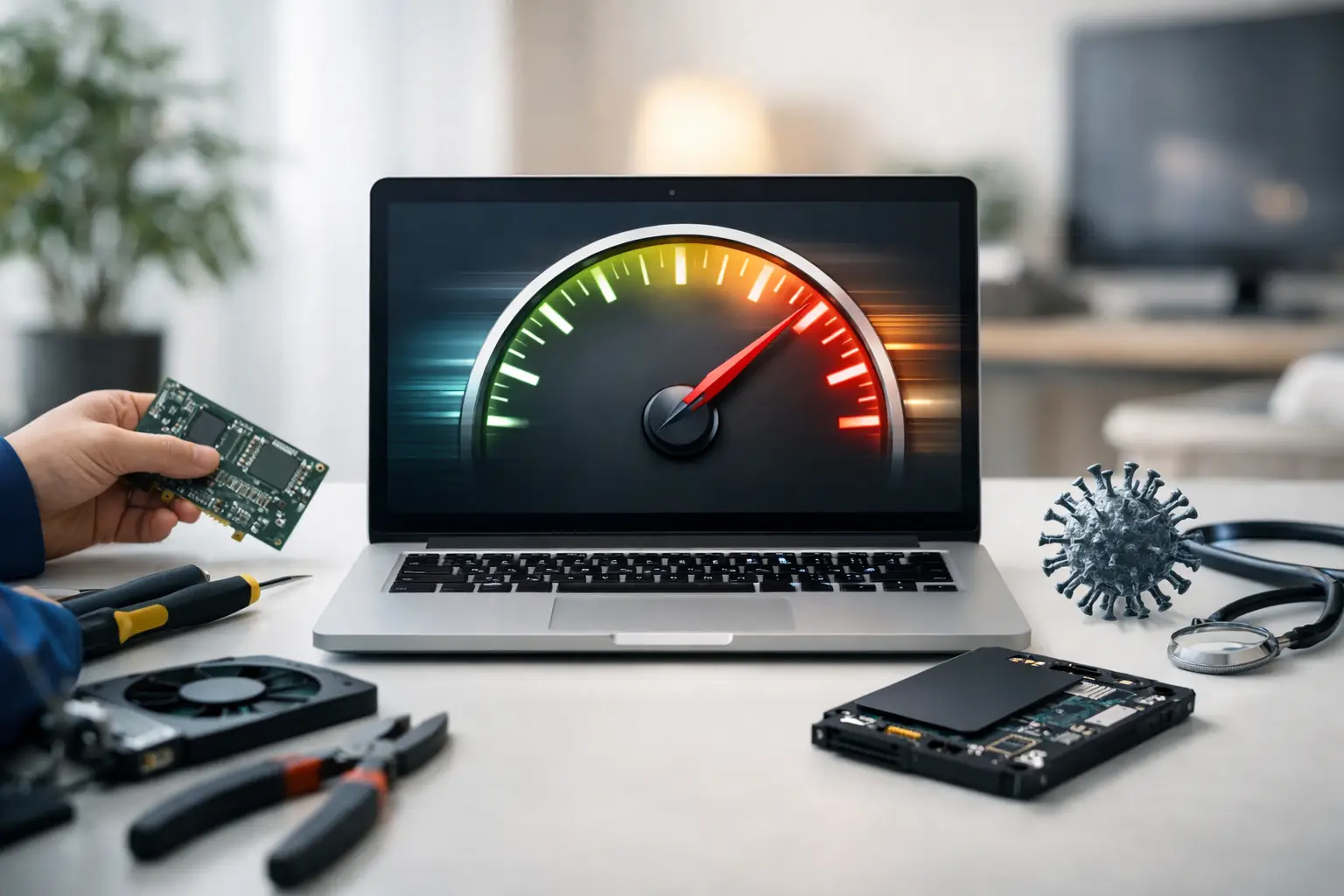

A computer that takes five minutes to start, freezes during a video call, or crawls when you open a browser can turn simple tasks into a headache. The best ways to speed computer performance depend on what is slowing it down: too many startup programs, a nearly full drive, unwanted software, aging hardware, overheating, or a failing component. The good news is that many slowdowns can be fixed without replacing the whole machine.
Start with the simple checks first. If those do not make a real difference, do not keep guessing or downloading random “PC cleaner” apps. A proper diagnosis can save your files, your time, and the cost of buying a computer you may not need.
Best Ways to Speed Computer Performance at Home
Restart it, then check what opens automatically
Restarting clears temporary processes that can build up after days or weeks of leaving a computer on. It is a small step, but it can immediately help a machine that has become sluggish after heavy use.
If the problem returns right after restarting, look at your startup apps. On a Windows PC, open Task Manager and select the Startup apps section. Disable programs you do not need the moment you sign in, especially old chat apps, game launchers, cloud tools you no longer use, and software installed with printers or other accessories. On a Mac, review Login Items in System Settings.
Be careful not to disable security software, touchpad tools, or hardware drivers if you are unsure what they do. Cutting down startup clutter often improves boot time, but it will not repair a computer with a failing hard drive or a virus.
Free up storage space
A nearly full drive can make a computer feel much slower, particularly if it uses an older hard disk drive. Your system needs free space for updates, temporary files, virtual memory, and normal day-to-day work.
Start by emptying the Recycle Bin or Trash, removing downloads you no longer need, and uninstalling large programs you have stopped using. Check for duplicate photos, old phone backups, and video files, since they can consume surprising amounts of space. Move files you want to keep to an external drive or a trusted cloud storage account.
As a general rule, try to leave at least 15 to 20 percent of your main drive free. If storage is constantly full, a larger solid-state drive can be a better long-term fix than repeatedly deleting files.
Close browser tabs and remove unnecessary extensions
Browsers are often the biggest reason a computer feels slow. A dozen open tabs, streaming video, online shopping pages, and several extensions can use a large share of available memory.
Close tabs you are not using and restart the browser. Then review installed extensions. Remove anything unfamiliar, unused, or overly aggressive with pop-ups and ads. Keep only extensions from sources you trust. If your browser homepage or search engine changes on its own, that is a warning sign that unwanted software may be involved.
If one website alone is slow, the computer may not be the problem. Try another site or check your internet connection before assuming the device needs repair.
Install updates, but do not ignore repeated update failures
Windows, macOS, browser, and driver updates can improve stability, security, and compatibility. Keeping them current is one of the easiest ways to prevent problems that make a computer drag.
That said, updates are not a cure-all. A computer that becomes extremely slow during every update, constantly restarts, or fails to complete updates may have a storage, software, or hardware issue underneath. Avoid forcing updates over and over if error messages keep appearing. Make sure important files are backed up, then have the problem checked.
Scan for viruses and unwanted software
Malware can quietly use your processor, memory, and internet connection while collecting data, showing ads, or changing system settings. Common signs include constant pop-ups, a browser that redirects you, unfamiliar programs, security warnings that do not look legitimate, or fans running hard when you are doing almost nothing.
Run a reputable security scan and remove threats it identifies. Do not install multiple competing antivirus programs, since they can conflict with each other and slow the computer further. If the machine is heavily infected, a professional virus removal service is usually safer than trying to delete files at random. Important documents, photos, saved passwords, and financial information may be at risk.
When a Slow Computer Is Actually a Hardware Problem
Software cleanup helps when the system is cluttered. It cannot fix worn-out parts. Older computers can still be useful, but they need the right upgrades and repairs.
Upgrade from a hard drive to a solid-state drive
For many older desktops and laptops, replacing a traditional spinning hard drive with a solid-state drive is the single biggest performance improvement available. An SSD can dramatically reduce startup time, speed up program launches, and make everyday use feel more responsive.
The trade-off is that the old drive must be handled carefully. If it contains your files, the data needs to be transferred correctly before replacement. A drive that is already failing may not clone successfully, so waiting until it completely dies can make recovery more difficult and more expensive.
Add memory when multitasking is the issue
Random access memory, or RAM, affects how well a computer handles multiple programs at once. If your computer slows down when you have a browser, email, spreadsheets, and a video meeting open together, more RAM may help.
Memory upgrades are not right for every device. Some newer laptops have RAM permanently attached to the motherboard, while others have limited upgrade options. Before purchasing parts, confirm what your exact model supports. Adding memory to a computer with a failing drive, overheating processor, or malware problem will not solve the real issue.
Address overheating before it causes bigger trouble
A computer that gets hot, has loud fans, shuts down unexpectedly, or becomes slow after 20 to 30 minutes may be overheating. Dust buildup can block airflow, and aging thermal material can make it harder for the processor to stay cool.
Keep vents clear and use the computer on a hard, flat surface. Do not use a laptop on blankets, couches, or pillows that trap heat. If the fan is constantly loud or the machine is too hot to use comfortably, stop pushing it. Internal cleaning and cooling repairs are best handled carefully, especially on thin laptops and Macs.
Do Not Waste Money on These “Fixes”
Slow-computer ads often promise a one-click cure. Be skeptical. Registry cleaners, driver-updater pop-ups, free speed boosters, and unknown “security alerts” can create more problems than they solve. Some install unwanted software. Others pressure you into paying for repairs you do not need.
You also do not need to replace a computer just because it is a few years old. A healthy machine with an SSD, enough memory, and a clean operating system can serve a student, family, or home office well for years. On the other hand, if a repair estimate approaches the cost of a reliable replacement and the computer cannot run the software you need, replacement may be the smarter choice.
When to Bring Your Computer to a Repair Shop
Get help if your computer keeps freezing, displays disk errors, makes clicking noises, will not boot, loses files, or remains slow after basic cleanup. These symptoms can point to a failing drive, hardware damage, deep malware infection, or operating system corruption. Continuing to use a failing drive can reduce the chance of recovering important photos, schoolwork, or business documents.
For customers in Havertown, Aston, and nearby Delaware County communities, CNA Computer Repair & Sales can diagnose slow computers, remove viruses, replace failing drives, upgrade eligible systems, and help protect your data before a small performance issue becomes a full device failure. You should get a clear explanation of what is wrong, what it will cost, and whether repair makes sense for your computer.
A faster computer is not always about buying the newest model. Start with the easy fixes, back up what matters, and treat warning signs like crashes, heat, and strange pop-ups early. The right repair can make a frustrating computer useful again without the runaround.
Leave a Reply