

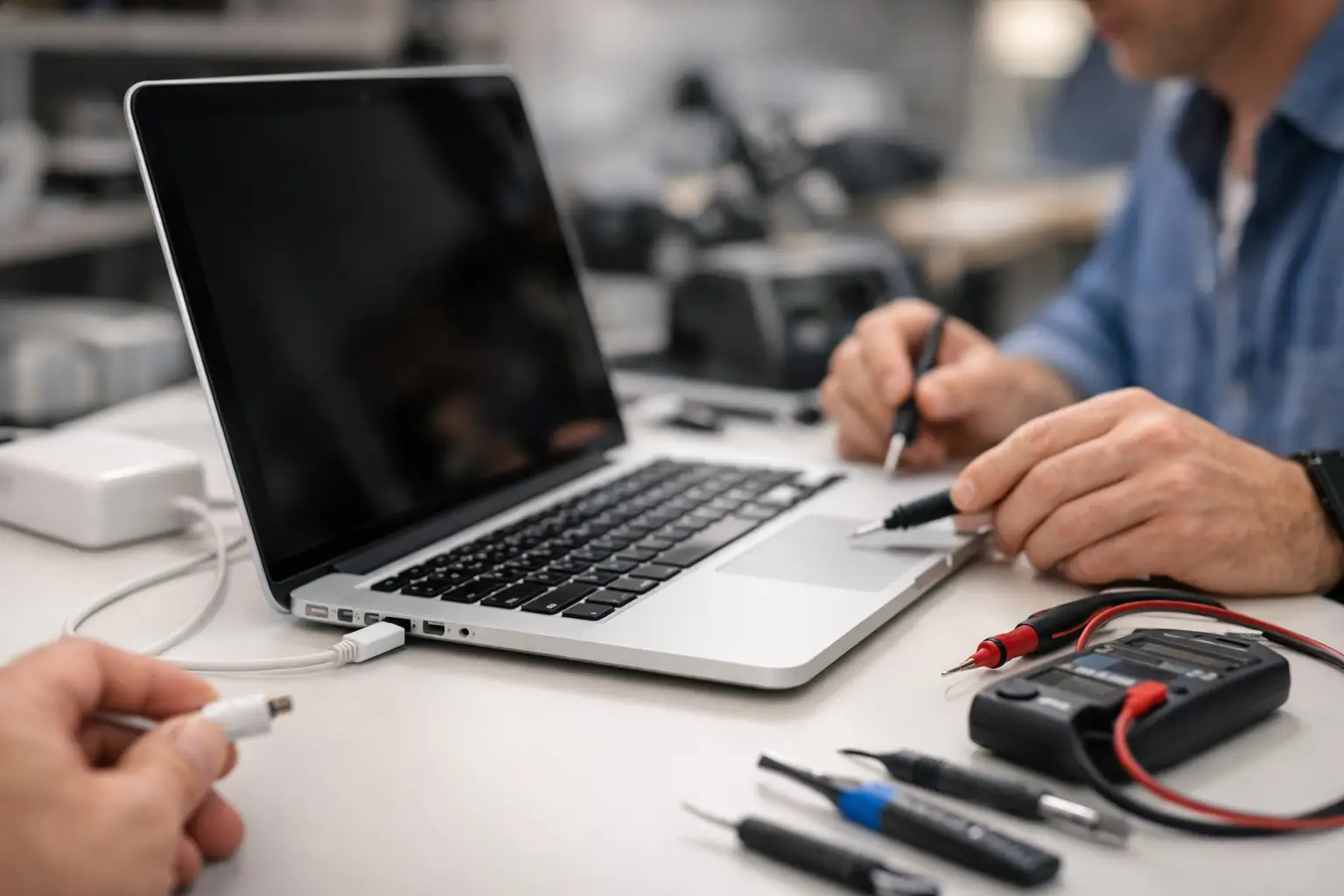

Your MacBook is at 2%, the charger is connected, and nothing happens. Before you assume the battery is dead or rush to replace the whole laptop, a proper MacBook charging issue repair starts with finding out where power is being interrupted. The cause may be as simple as a worn cable or debris in the charging port. It can also be a failing battery, damaged USB-C port, liquid damage, or an internal board problem.
The good news is that many charging problems can be diagnosed without guesswork. The key is knowing which checks are safe to try at home and which warning signs mean you should stop charging it and bring it in.
Start With the Charger and Power Source
A MacBook that will not charge is not always the problem. Power adapters, cables, wall outlets, surge protectors, and charging blocks all wear out or fail. Start with the simplest test: plug the adapter directly into a known working wall outlet, not a power strip or extension cord.
If you have a USB-C MacBook, inspect both ends of the cable and try another USB-C port on the computer. A cable can look perfectly fine on the outside while the internal wires are broken. If your MacBook uses MagSafe, check whether the connector attaches securely and whether the indicator light comes on.
Pay attention to heat, fraying, bent connector ends, discoloration, or a burning smell. Do not keep using a damaged adapter or cable. A low-quality replacement charger may seem like a cheaper fix, but it can deliver inconsistent power and create a bigger repair bill later.
It also helps to test with a charger that has the correct wattage for your model. A lower-wattage charger may power a MacBook slowly, fail to charge it while you are working, or show a message that the power source is not sufficient. A technician can confirm whether the adapter is providing the power your model requires.
Check the Charging Port Carefully
USB-C ports collect lint, dust, and small debris, especially when a MacBook travels in a backpack, purse, vehicle, or classroom. Even a small amount of debris can prevent a cable from sitting fully inside the port. The result may be a charger that connects only at a certain angle or repeatedly starts and stops charging.
Turn off the MacBook and inspect the port under good lighting. Do not insert metal tools, pins, paper clips, or anything wet into the port. Those methods can bend internal contacts or cause a short. If debris is visible and you are not comfortable removing it safely, have it cleaned professionally.
A loose port, a cable that falls out easily, or a connector that only works when held in place usually points to physical port damage. That is not a problem to ignore. Continued pressure on a damaged port can turn a straightforward repair into a more extensive internal issue.
Understand What Your MacBook Is Telling You
A charging issue does not always mean the MacBook is completely dead. Look for the pattern. Does it charge when shut down but not while you are using it? Does it show the charging symbol but the battery percentage never rises? Does it work with one port but not another? These details help narrow down the cause.
If the MacBook turns on, open the battery settings and look for a service recommendation. Apple laptops are designed to report when battery health has declined significantly. An aging battery may still allow the computer to run while plugged in, but it may drain quickly, shut down unexpectedly, or refuse to hold a charge.
Some newer MacBooks also use battery health management to reduce long-term wear. That can occasionally make charging behavior seem unusual, such as pausing around 80%. If the laptop is operating normally and the battery message does not recommend service, it may be a software-controlled feature rather than a failure. If it stays stuck at a low percentage or loses power as soon as the charger is removed, it needs a closer look.
When a Reset May Help
Sometimes the MacBook’s power management settings need a reset after a system update, power surge, or battery drain. The right method depends on the model, especially whether it has Apple silicon or an Intel processor. Restarting the computer, installing available macOS updates, and testing the charger after a full shutdown can solve minor software-related charging problems.
However, do not spend hours repeating resets when there is an obvious hardware symptom. A MacBook with a hot charging port, visible damage, a swollen battery, liquid exposure, or no response from multiple known-good chargers needs professional diagnosis instead. Software steps cannot repair a broken power circuit or a worn-out battery.
Signs You Should Stop Using It Right Away
Charging problems become urgent when safety is involved. Stop using the MacBook and unplug it if you notice the bottom case separating, the trackpad becoming difficult to click, unusual bulging, smoke, a chemical smell, sparking, or excessive heat. These can be signs of a swollen or failing battery.
Liquid exposure is another reason to act quickly. Even if the MacBook still turns on after a spill, charging it can push power through damaged components and worsen corrosion. Turn it off, disconnect the charger, and avoid using rice, heat guns, or hair dryers. Fast professional cleaning and inspection give the device a better chance of recovery.
Important files matter here, too. If your MacBook is still able to start, back up your documents, photos, and work files as soon as possible. A charging failure may be isolated to the battery or port, but it is never wise to assume the computer will keep powering on until repair day.
What a Professional MacBook Charging Issue Repair Includes
A reliable repair starts with diagnosis, not an automatic battery replacement. The technician should test the charger, cable, charging ports, battery condition, power input, and internal components that control charging. This identifies whether you need a new battery, a port repair, a replacement adapter, internal board-level work, or simply a safe port cleaning.
That distinction matters because the cheapest-looking solution is not always the actual fix. Replacing a battery will not repair a damaged USB-C port. Buying several new chargers will not solve an internal charging circuit problem. A clear diagnosis prevents paying for parts that do not address the cause.
At CNA Computer Repair & Sales, customers can speak with a live person about what the MacBook is doing before committing to a repair. For families, students, professionals, and local business owners around Havertown, Aston, Media, and nearby communities, that means getting straightforward answers without being pushed through an impersonal repair process. Once the issue is identified, you can make an informed decision based on the repair needed, cost, and condition of the laptop.
Protect Your MacBook After the Repair
After the charging problem is fixed, a few habits can help prevent a repeat issue. Use a charger with the correct wattage, avoid sharply bending cables near the connector, and keep liquids away from the keyboard and ports. When traveling, disconnect the cable before packing the MacBook rather than forcing the connector against the side of the laptop.
Battery wear is normal, especially on older MacBooks. If the laptop is otherwise meeting your needs, replacing a worn battery can be far more practical than replacing the entire computer. On the other hand, if an older device needs a battery, ports, and major internal work at once, it may be worth discussing the repair cost against replacement options.
A MacBook should not need to be positioned just right to charge, shut down without warning, or leave you watching the battery percentage fall while it is plugged in. Address the issue early, protect your files, and get a clear diagnosis so your laptop can get back to work when you need it.
Leave a Reply