

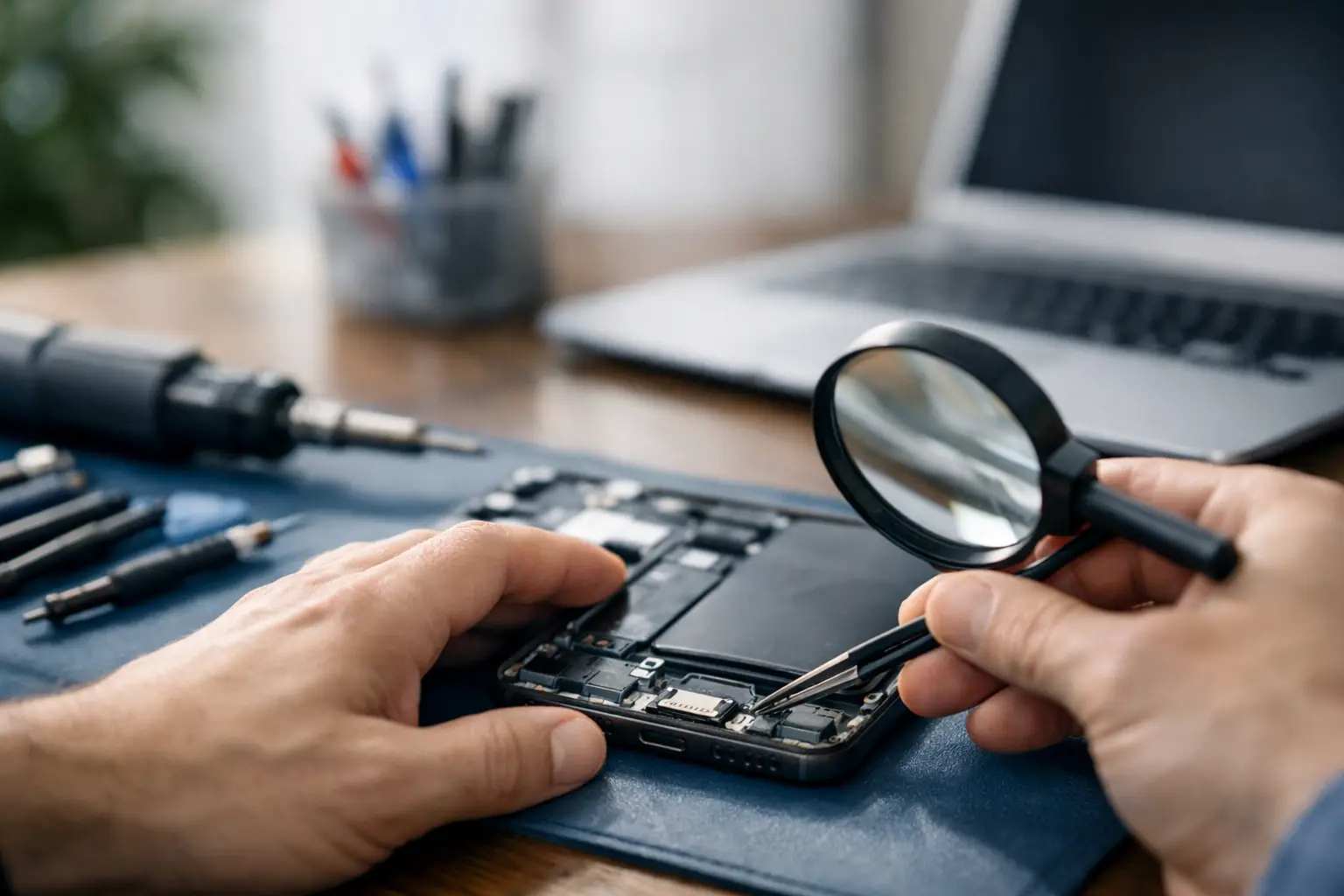

Your phone only charges when the cable is bent at a certain angle. Your laptop flashes its charging light, then stops. Your tablet says it is charging but the battery percentage keeps falling. Before you search for how to repair charging port issues and start poking around inside the device, take a breath. Many charging problems are caused by lint, a worn cable, a weak battery, or liquid damage – not necessarily a broken port.
The right fix depends on what is actually failing. A careful cleaning may solve a simple blockage in minutes. A loose USB-C, Lightning, or laptop power jack often needs professional repair, especially when the port is soldered directly to the motherboard. Trying to force a quick DIY repair can turn a manageable problem into a more expensive board repair.
Start by Finding the Real Charging Problem
A charging port gets blamed because it is the visible connection point, but it is only one part of the charging system. Test the cable and wall adapter first. Use a known-good charger that matches your device’s power requirements, and plug it directly into a working wall outlet instead of a power strip, car adapter, or computer USB port.
Look closely at the cable ends. A bent connector, frayed wire, loose housing, or blackened contact is a reason to replace the cable immediately. Do not keep using a damaged charger. It can overheat, charge inconsistently, or damage the port further.
Next, pay attention to the pattern. If several good cables fit loosely or only work when held in place, debris or physical port damage is likely. If the cable fits firmly but charging is still slow or intermittent, the issue could be the battery, charging circuit, software, or power adapter. On laptops, a failing battery can make it appear that the power jack is the problem.
How to Repair Charging Port Issues Caused by Dirt
Pocket lint is one of the most common causes of a phone or tablet that will not charge reliably. It gets packed into the bottom of a USB-C or Lightning port over time. The charging cable may look plugged in, but it cannot reach the contacts fully.
Turn the device off before inspecting the port. Use a bright light and look inside without forcing anything. If you can see compacted lint, gently loosen it with a dry, nonmetal tool, such as a plastic pick or wooden toothpick. Work slowly around the edges. A soft, clean brush can help lift loose dust out.
Do not use a paper clip, sewing needle, knife, or other metal object. The contacts inside a charging port are delicate, and metal tools can scratch, bend, or short them. Avoid pouring liquid into the port or spraying cleaners directly into it. Compressed air can help with loose dust, but it will not always remove tightly packed lint and can push moisture or debris deeper if used carelessly.
After cleaning, reconnect a known-good cable. It should seat firmly and charge without needing to be wiggled. If the connector still feels loose, stop there. The debris may be gone, but the port itself could be worn or damaged.
When cleaning is not the answer
Cleaning cannot fix a cracked center pin, bent contacts, a port pulled away from the board, or corrosion from water exposure. It also will not repair an adapter that has broken off inside the device. In these cases, continued charging attempts can damage the device’s charging circuitry.
A port that gets hot, smells burnt, shows discoloration, or sparks is not a cleaning project. Unplug the charger and have the device inspected as soon as possible.
Signs Your Charging Port Needs Professional Repair
A professional repair is usually the smart choice when the cable only works at an angle, falls out easily, or no longer clicks into place. Those symptoms often mean the port’s internal connections are worn, bent, or separating from the board.
It is also time for help if the device has been dropped or exposed to water. A phone may continue working after a spill, yet corrosion can build around the port and cause charging trouble days or weeks later. Charging a wet device can create a short circuit, so do not plug it in just to see whether it still works.
Watch for these warning signs:
- The device charges on and off with multiple tested cables and adapters.
- The port feels loose, cracked, blocked, or physically damaged.
- Charging is unusually slow, even with the correct charger.
- The device becomes hot near the port or charger connection.
- A liquid-damage alert appears, or there are visible signs of corrosion.
For many newer phones, tablets, and laptops, the charging port is part of a small replaceable assembly. For others, especially certain laptops and tablets, it is attached directly to the motherboard. That difference affects repair time and cost. A technician can inspect the port, test power delivery, and explain whether a port replacement, battery replacement, or board-level repair makes the most sense.
Do Not Force a Loose or Stubborn Connector
Forcing a cable into a port can bend the internal pins or break the connector tip. If a cable suddenly will not go in all the way, do not push harder. Remove it, inspect both ends, and check for debris. USB-C connectors are reversible, but they still need to enter smoothly. Lightning connectors should also sit flush without excessive pressure.
Laptop chargers need the same care. A round barrel plug that moves excessively in the jack can strain the internal power connection. If your laptop only charges while the plug is held in a certain position, avoid using tape, rubber bands, or makeshift supports as a long-term fix. Movement can worsen a loose power jack and potentially damage the motherboard.
Wireless charging can be a temporary option for some phones, but it is not a repair. It may help you keep the phone powered long enough to back up photos, contacts, and important messages. It will not resolve a damaged wired port, and it may not be available on every model.
Protect Your Device After a Charging Port Repair
Once the port is working again, a few habits can help it last. Use quality cables that fit properly, remove the cable by gripping the connector instead of pulling the wire, and keep phones out of dusty pockets or bags when possible. If you charge a laptop at a desk, give the cable enough slack so it is not repeatedly tugged.
Use the charger designed for your device or a reputable replacement with the correct wattage. Cheap, poorly made adapters can create unstable charging and unnecessary heat. Fast charging is useful, but it depends on the phone, cable, and adapter all supporting the same standard.
If your device starts charging inconsistently again, get it checked early. A small issue is generally faster and less costly to address before repeated cable movement damages internal components.
Get a Straight Answer Before the Problem Gets Worse
Charging trouble is frustrating because it interrupts everything – work calls, school assignments, navigation, family photos, and everyday communication. A careful cable test and gentle port cleaning are reasonable first steps. Beyond that, do not risk your device with aggressive DIY tools or repeated attempts to force a connection.
For customers in Aston, Havertown, and nearby communities, CNA Computer Repair & Sales can inspect phones, tablets, laptops, and computers, identify what is actually causing the problem, and provide a clear repair option without the runaround. Getting a live expert to look at the device can save you from replacing parts that were never the problem in the first place.
Leave a Reply