

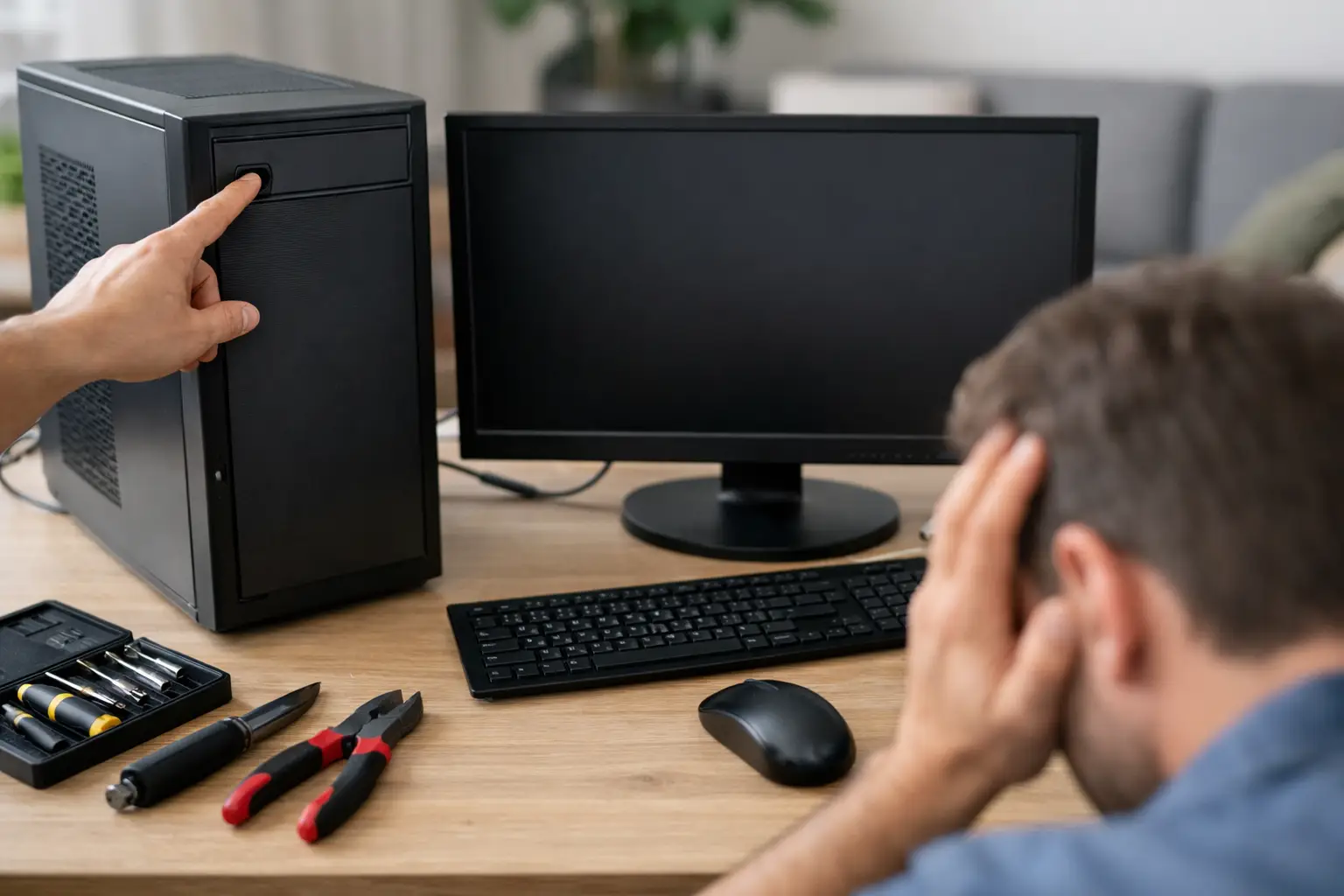

That sinking feeling usually starts the same way – you press the power button, wait for the screen to light up, and get nothing. If you’re asking, why wont my computer turn on, the good news is that the problem is not always as bad as it looks. Sometimes it’s a dead charger, a failed battery, a bad power button, or even a display issue that makes the computer seem completely dead.
Before you assume the worst, it helps to narrow down what “won’t turn on” actually means. Is there no light at all? Do you hear fans but see a black screen? Does it flash on and shut back off? Those details matter, because they point to very different problems and very different repair costs.
Why wont my computer turn on at all?
When a computer shows no sign of life, the first suspect is power. On a desktop, that can mean a bad outlet, loose power cable, failed power supply, or internal hardware fault. On a laptop, it often comes down to the charger, battery, charging port, or motherboard.
Start with the simple stuff. Make sure the outlet works by testing another device. If you use a surge protector, bypass it and plug directly into the wall. Check whether the charger brick feels unusually hot, has frayed wires, or only works at a certain angle. If the charging light does not come on when plugged in, that’s a clue the charger or charging port may be failing.
For laptops with removable batteries, try powering on with the battery removed and the charger connected. If it starts that way, the battery may be the issue. For newer laptops with built-in batteries, a hard reset can sometimes help. Disconnect power, hold the power button for about 20 seconds, reconnect the charger, and try again. It’s quick, and sometimes that alone clears a stuck power state.
If there are still no lights, no sound, and no response, the issue may be deeper. A failed DC jack, damaged motherboard, liquid damage, or power circuit problem can all stop startup completely. At that point, guessing can waste time and make things worse.
It turns on, but the screen stays black
This is one of the most common situations people describe as a dead computer. The machine may actually be starting, but the display is not working. You might hear fans spin, see a keyboard light up, or notice a power indicator, yet the screen stays dark.
First, turn the brightness up. It sounds obvious, but it gets missed more often than you’d think. If you have a desktop, confirm the monitor is powered on and connected to the correct input. If you have a laptop, try connecting it to an external monitor or TV. If the external display works, the problem may be the laptop screen, backlight, display cable, or graphics system.
Listen closely. If startup sounds happen in the background, your computer is probably not fully dead. That usually means the repair path is more focused and often less expensive than replacing the whole machine. The trade-off is that screen-related issues can still vary a lot in price depending on the model.
A black screen can also point to memory problems, graphics failure, or a system crash during startup. If the computer powers on and then freezes before showing anything useful, there may be a software issue involved too.
Why wont my computer turn on after charging all night?
If your laptop sat on the charger for hours and still won’t start, don’t assume the battery is the only issue. Sometimes the battery is not actually charging because the charger is weak, the charging port is loose, or the internal charging circuit has failed.
Watch for these signs: the battery light blinks strangely, the charger only works if held in one position, or the laptop gets power briefly and cuts out. Those symptoms often point to a bad charging port or worn adapter rather than the battery itself.
There’s also the possibility of battery failure after age or heat exposure. Laptop batteries do not last forever. If the machine is a few years old and has been running hot, the battery may no longer hold enough charge to start the system. In some cases, the laptop will still run on the charger alone. In others, a bad battery can interfere with startup.
This is where a proper test matters. Replacing a battery when the real problem is the charging port or motherboard only adds cost and delays.
When the computer turns on, then shuts off
A computer that powers on for a moment and dies is usually trying to tell you something. Overheating, bad RAM, motherboard faults, power supply issues, and corrupted startup files can all cause this behavior.
On a desktop, a failing power supply is a common reason. On a laptop, overheating from dust buildup or failing internal components can trigger an immediate shutdown. If the machine has been running unusually hot, making loud fan noise, or shutting off randomly before this started, overheating should move high on the list.
Memory issues can cause startup loops too. If RAM is loose or failing, the system may never complete its startup checks. This is fixable in many cases, but it does require opening the machine and testing parts carefully. If you are not comfortable doing that, this is one of those moments where professional help usually saves time.
Could it be a software problem?
Yes – but only if the computer shows some signs of life. If lights come on, the manufacturer logo appears, or you can hear startup sounds, the issue may be the operating system rather than the hardware.
A failed Windows update, corrupted system files, drive errors, or malware can all keep a computer from loading properly. To a non-technical user, that can feel exactly like the computer won’t turn on, even though it’s technically powering up.
This is one reason we always tell people not to panic and start clicking random recovery options. If important files are on the device, the wrong step can complicate data recovery. If you see repair screens, startup loops, or messages about automatic repair, stop and think before trying every option on the screen.
What you can safely try before paying for repair
There are a few steps that make sense before bringing your computer in. Check the outlet and charger, disconnect accessories, and try a hard reset. If it’s a desktop, reseat the power cable and test a different monitor. If it’s a laptop, look for charging lights and try an external display if you have one.
You should also unplug anything nonessential. USB hubs, docking stations, external drives, and even a faulty accessory can interfere with startup. Strip it down to the basics and try again.
What you should not do is keep forcing it on over and over if you smell something burnt, hear clicking from the hard drive, or suspect liquid damage. Those are the moments when repeated attempts can turn a repairable problem into a data loss problem.
When to stop troubleshooting and get help
If your computer has no power at all after basic checks, if the charging port feels loose, if the screen is black but the system seems active, or if startup keeps failing, it’s time to get it looked at. The same goes for liquid damage, strange smells, overheating, or any sign that important files may be at risk.
A local repair shop can usually tell pretty quickly whether you’re dealing with a charger, battery, screen, DC jack, power supply, motherboard, or software issue. That matters because startup problems can range from a simple part replacement to a more advanced board-level repair, and the price difference is real.
For customers around Aston, Havertown, Media, and nearby areas, fast diagnostics can save a lot of frustration. A good shop should explain the problem in plain English, tell you what’s worth fixing, and be honest if the repair doesn’t make financial sense. That’s the kind of straightforward help people want when their work, school files, photos, or everyday access are suddenly stuck inside a machine that won’t start.
If you’re still asking why wont my computer turn on, the answer is usually one of a few core problems: power, battery, screen, internal hardware, or startup software. The hard part is telling which one without wasting money on the wrong fix. Start with the safe checks, protect your data, and if the problem is still there, get it diagnosed before a small issue turns into a bigger one.
Leave a Reply