

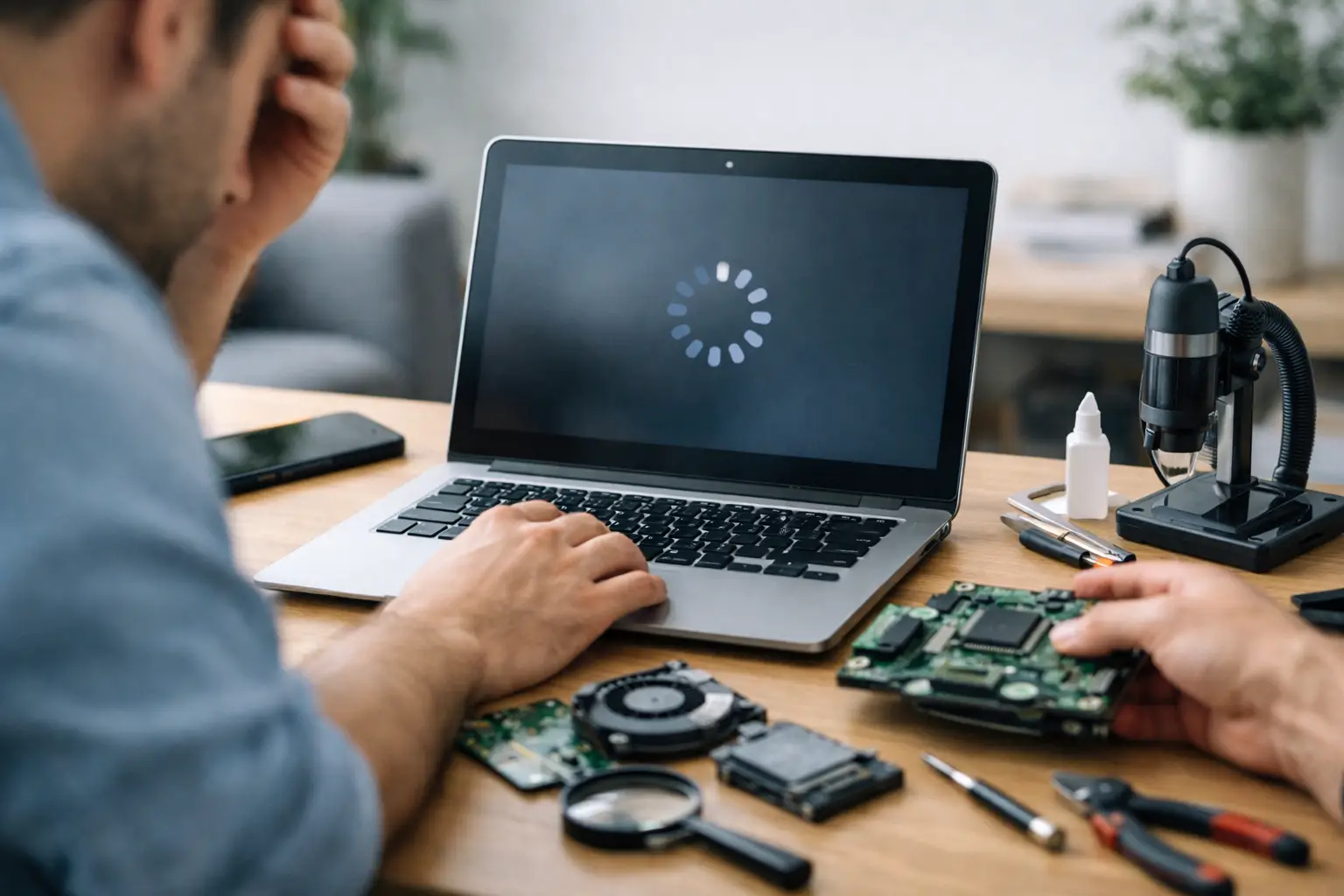

A laptop that used to start in seconds can become painfully slow without much warning. Apps freeze, the fan runs constantly, web pages hesitate, and even opening an email feels like work. If you are asking, “why is my laptop slow?”, the answer is usually not one mysterious problem. It is often a mix of too many background programs, limited storage, aging hardware, malware, or a part beginning to fail.
The good news is that many slow laptop problems can be improved quickly. Others need a professional diagnosis before you lose time, files, or access to a computer you rely on every day.
Why Is My Laptop Slow All of a Sudden?
A sudden slowdown is different from a laptop that has gradually become less responsive over several years. When the change happens overnight, think about what changed first. Did Windows or macOS install an update? Did you add a new program, browser extension, printer, or antivirus tool? Did the laptop take a fall, get unusually hot, or start showing pop-ups?
Updates can temporarily slow a system while they finish installing and organizing files. That may clear up after a restart and some time plugged in. But if the slowdown continues for days, or the laptop is crashing, overheating, or making clicking sounds, do not assume it will fix itself.
A few common signs can point toward the cause. A computer that takes a long time to turn on may have too many startup programs or a worn-out hard drive. A laptop that is slow only online may have a browser issue, weak Wi-Fi, or an internet problem. One that slows down whenever you open several tabs or applications may simply be running out of memory.
The Most Common Reasons Your Laptop Runs Slowly
Too many programs start with your computer
Many applications add themselves to your startup list without making it obvious. Cloud storage apps, chat tools, game launchers, printer software, update services, and trial programs can all start running the moment you sign in. Each one uses a little memory and processing power. Together, they can make a healthy laptop feel old.
On a Windows laptop, check the Startup Apps area in Settings or Task Manager. On a Mac, review Login Items in System Settings. Disable programs you do not need immediately after turning the computer on. Keep security software, essential backup tools, and anything you use daily. Be cautious about removing items if you do not recognize them.
Your storage is nearly full
A full drive does more than prevent you from saving new photos or documents. Windows and macOS need available space for updates, temporary files, virtual memory, and normal system operation. When a drive is packed with old downloads, duplicate photos, videos, and unused applications, performance can suffer.
Start by emptying the recycle bin or trash, removing programs you no longer use, and moving large personal files to an external drive or trusted cloud storage. Aim to keep a meaningful amount of free space available rather than operating at the absolute limit. If storage fills up again right away, the laptop may need a larger drive instead of another round of cleanup.
Not enough memory for how you use the laptop
Memory, also called RAM, helps a computer keep several tasks open at once. A laptop with limited RAM may work acceptably for basic browsing and documents but struggle with video calls, school software, photo editing, multiple browser tabs, or large spreadsheets.
Closing unused tabs can help in the moment. So can shutting down applications that are running in the background. But if your laptop regularly slows down during ordinary work, adding memory may be worthwhile if the model allows it. Some newer laptops have memory permanently built into the system, so an upgrade is not always possible. That is where an honest assessment matters before spending money on parts.
An old hard drive is holding everything back
Traditional hard disk drives have moving parts. They are slower than solid-state drives and eventually wear down. If your older laptop takes several minutes to boot, pauses when opening files, or constantly shows high disk activity, the hard drive may be the bottleneck.
Replacing an old hard drive with a solid-state drive is one of the most noticeable performance upgrades available for many older laptops. It can dramatically improve startup time, application loading, and everyday responsiveness. The trade-off is that the job should include careful data transfer and verification. If the old drive is already failing, waiting too long can make file recovery harder and more expensive.
Malware, adware, or unwanted browser extensions
Viruses are not the only security problem that can slow down a computer. Adware, unwanted toolbars, fake cleanup programs, browser extensions, and suspicious background processes can consume resources while also putting your personal information at risk.
Warning signs include pop-up ads outside normal websites, a changed homepage or search engine, unfamiliar programs, browser redirects, security alerts that demand immediate payment, or a laptop that becomes hot and loud while doing very little. Do not call phone numbers in pop-up warnings or install a “fix” offered by a random ad.
Run a reputable security scan and remove suspicious software. If you use the laptop for banking, work accounts, or sensitive family files, it is smart to have it checked thoroughly. A partial cleanup can leave the real problem behind.
Heat and dust are slowing the system down
Laptops are designed to reduce performance when they get too hot. This protects the processor from damage, but it can make the computer feel sluggish. Dust buildup in the fan and vents, dried thermal material, a failing fan, or using the laptop on a bed or couch can all trap heat.
If the bottom of your laptop gets extremely hot, the fan runs hard, or the system slows down after 15 to 30 minutes of use, heat may be involved. Use it on a hard, flat surface and make sure the vents are clear. Avoid spraying compressed air deep into the laptop without knowing where the fan and components are located. On some machines, that can push debris farther inside or damage a fan.
Updates, outdated software, or driver conflicts
Keeping a laptop updated is generally the right move, but updates occasionally expose a software conflict or a driver issue. Graphics drivers, printers, Wi-Fi adapters, and older applications can all create slowdowns after a major operating system update.
Restart the laptop first. Then check for pending updates and make sure they complete. If one particular program is slow, reinstalling or updating that program may solve the issue. If the whole laptop is slow after an update, avoid downloading random driver tools. They often create more problems than they solve.
Quick Fixes You Can Try Before Booking Repair
Start with the simple steps that do not put your files at risk. Restart the laptop instead of only closing the lid. Disconnect unnecessary USB devices. Close programs and browser tabs you are not using. Check available storage, remove obvious unwanted applications, and install legitimate system updates.
Then pay attention to the pattern. Is it slow only when connected to one Wi-Fi network? Is one application causing the delay? Does it only happen when charging, gaming, joining video meetings, or opening large files? Those details make diagnosis much faster.
Back up important files before attempting major changes such as a system reset, operating system reinstall, or drive replacement. A reset can help with severe software problems, but it is not the right first answer for every slow laptop. It may erase files, remove programs you need, and do nothing if the real issue is failing hardware.
When a Slow Laptop Needs Professional Help
It is time to stop guessing if your laptop is freezing repeatedly, shutting down unexpectedly, showing blue screens, making clicking or grinding sounds, overheating, or failing to detect its drive. Those are not normal signs of a computer “getting old.” They can signal a failing drive, battery issue, damaged charging system, corrupted operating system, or another repairable problem.
Professional help also makes sense when your files matter. Family photos, tax documents, school projects, business records, and saved passwords are worth protecting. A repair technician can determine whether a cleanup, virus removal, memory upgrade, solid-state drive upgrade, cooling repair, or data recovery service is the most cost-effective next step.
For customers around Havertown, Aston, Media, Springfield, and nearby Delaware County communities, CNA Computer Repair & Sales offers straightforward diagnostics and repair options without the runaround of a big-box service counter. You should know what is wrong, what the repair costs, and whether fixing the laptop makes sense before committing.
A slow laptop is frustrating, but it does not automatically mean you need to buy a new one. Start with the safe basics, protect your important files, and get a clear diagnosis if the problem keeps coming back. The right repair can give a laptop several more useful years at a much lower cost than replacement.
Leave a Reply