

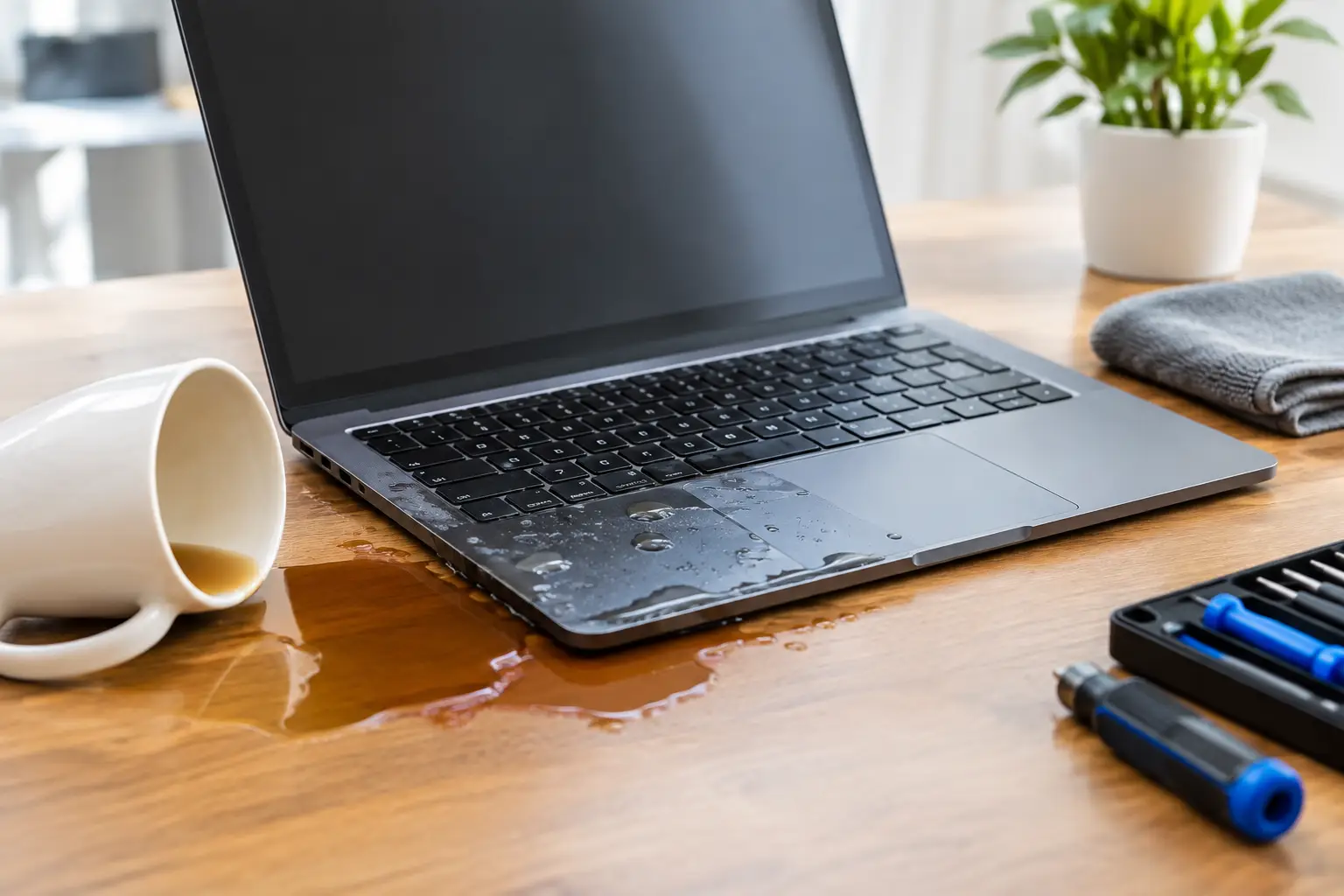

A splash of coffee beside the trackpad, a knocked-over water bottle during homework, or a drink spilled at your desk can turn an ordinary day into a panic situation. Good laptop spill recovery starts in the first few minutes. The goal is simple: stop electricity from reaching wet components, limit how far liquid travels, and get help before corrosion turns a small spill into a major repair.
Do not wait to see whether the laptop “dries out.” A device may power on after a spill and still have liquid trapped beneath the keyboard, battery, or motherboard. That is why fast action matters more than guessing whether it seems okay.
The First Five Minutes After a Laptop Spill
Start by unplugging the charging cable immediately. If your laptop is connected to a monitor, USB devices, headphones, or any other accessories, disconnect those as well. Electricity and moisture are a bad combination, and leaving power connected can cause a short circuit.
Next, shut the laptop down. If it is running and will not respond normally, hold the power button until it turns off. Do not spend time saving files, closing programs, or looking up repair advice while the computer is still powered on. Protecting the hardware comes first.
Once it is off, gently blot visible liquid from the keyboard, screen bezel, touchpad, and ports with a clean, lint-free cloth or paper towel. Blot instead of wiping hard. Aggressive wiping can push moisture farther into keys, seams, and openings.
If the spill was mostly on the keyboard, carefully open the screen and position the laptop in an upside-down tent shape on a towel, with the keyboard facing downward. This can help surface liquid drain away instead of settling deeper inside. Do not shake the computer. Shaking can move liquid onto components that were not originally affected.
If the battery is removable, take it out after disconnecting power. Most modern laptops have internal batteries, so do not force the case open if you are unfamiliar with the model. Trying to disassemble a wet laptop without the right tools can damage clips, cables, or the battery.
What Not to Do During Laptop Spill Recovery
The wrong fix can make a repair more expensive. People often hear that rice can dry electronics, but rice is not a reliable laptop repair method. It does not remove sticky residue, mineral deposits, sugar, milk, or acids left behind by a drink. It can also leave dust and debris around ports and the keyboard.
Avoid using a hair dryer, space heater, oven, or direct sunlight. Heat can warp plastic parts, damage the display, weaken adhesives, and push moisture deeper into the device. A fan in a dry room is safer for surface drying, but airflow alone cannot clean contaminated internal parts.
Most importantly, do not keep turning the laptop on to test it. Every power-up is a risk when moisture is still inside. A laptop that appears normal for an hour can suddenly lose keys, stop charging, develop screen issues, or fail to start days later as corrosion spreads.
The Type of Liquid Changes the Risk
Plain water is usually less damaging than coffee, soda, juice, wine, or anything with sugar, cream, salt, or alcohol. But “less damaging” does not mean harmless. Tap water contains minerals, and those minerals can leave conductive deposits after the water evaporates.
Sugary drinks are particularly tough on keyboards and trackpads. They leave a sticky film that can cause keys to stick or stop registering. Coffee with cream, milk, or sweetener can create residue and odors inside the machine. Soda and sports drinks can corrode metal contacts quickly. If a liquid was anything other than plain water, professional cleaning is strongly recommended.
The amount and location of the spill matter, too. A few drops on the palm rest may be manageable. A full drink poured over the keyboard, into side ports, or through a cooling vent needs immediate attention. Thin laptops can be especially vulnerable because the keyboard, battery, and motherboard are packed closely together.
When You Need Professional Spill Repair
Bring the laptop in as soon as possible if it will not turn on, shuts off unexpectedly, has a flickering screen, will not charge, makes clicking or buzzing sounds, or has sticky or unresponsive keys. You should also get help if liquid entered a USB port, charging port, headphone jack, vent, or hinge area.
Even if the laptop starts normally, a professional inspection is worth considering after a significant spill. A technician can open the device safely, disconnect the battery, inspect for moisture and corrosion, and clean affected areas properly. This is especially valuable when the laptop contains work documents, school projects, tax records, photos, or other files you cannot afford to lose.
At CNA Computer Repair & Sales, the focus is on straightforward answers: what got wet, what can be cleaned, what needs replacement, and what it will cost. For customers around Havertown, Aston, and nearby communities, getting the device looked at quickly can make the difference between a cleaning service and a motherboard-level failure.
Can Your Files Be Recovered?
A laptop spill does not automatically mean your data is gone. In many cases, files remain safe on the SSD or hard drive even when the laptop itself will not start. The challenge is avoiding further damage by repeatedly trying to boot the computer.
If the device contains critical files, tell the repair technician right away. Data recovery should be part of the repair plan, not an afterthought. Depending on the laptop and the damage, it may be possible to copy files to another drive, repair the computer enough to access data, or remove the storage safely for recovery.
Newer laptops sometimes have storage soldered directly to the motherboard. Those cases can be more complicated, which is another reason to avoid DIY disassembly or repeated power tests. The sooner a technician can assess the device, the better the chance of protecting both the hardware and the data.
What to Expect From a Spill Inspection
A proper liquid-damage inspection is more than letting a laptop sit out overnight. The device may need to be opened so internal components can be examined for moisture, residue, corrosion, or burned areas. The battery should be disconnected before cleaning begins.
The repair approach depends on what was spilled, how long it sat inside the laptop, and which parts were affected. Sometimes a thorough internal cleaning and keyboard replacement are enough. Other times, damage to the charging circuit, trackpad, display cable, battery, or motherboard may require additional repair. A good repair shop will explain the condition before moving forward, rather than surprising you with vague charges later.
There is also a real trade-off between repair cost and the age or value of the laptop. If an older budget model needs major board work, replacing the device may make more sense. If it is a newer MacBook, gaming laptop, business machine, or computer with irreplaceable files, repair can be the better value. The right answer depends on the device and what you need from it.
Prevent the Next Spill Without Changing Your Routine
You do not need to ban drinks from your desk forever. A few small habits lower the risk. Keep drinks on the opposite side of your dominant hand, use a bottle with a secure lid when possible, and avoid placing a full cup directly beside the laptop. If you work from the couch or bed, use a stable lap desk rather than balancing both the computer and a drink on soft surfaces.
Regular backups are the other essential safeguard. Cloud storage can protect current documents, while an external backup drive can preserve photos and larger files. Backups will not save a wet laptop, but they remove the fear that one accident will take every important file with it.
A spill is stressful, but fast, calm action gives your laptop the best chance. Turn it off, disconnect it, blot it carefully, keep it powered down, and get a qualified technician involved before hidden moisture has time to cause lasting damage.
Leave a Reply