

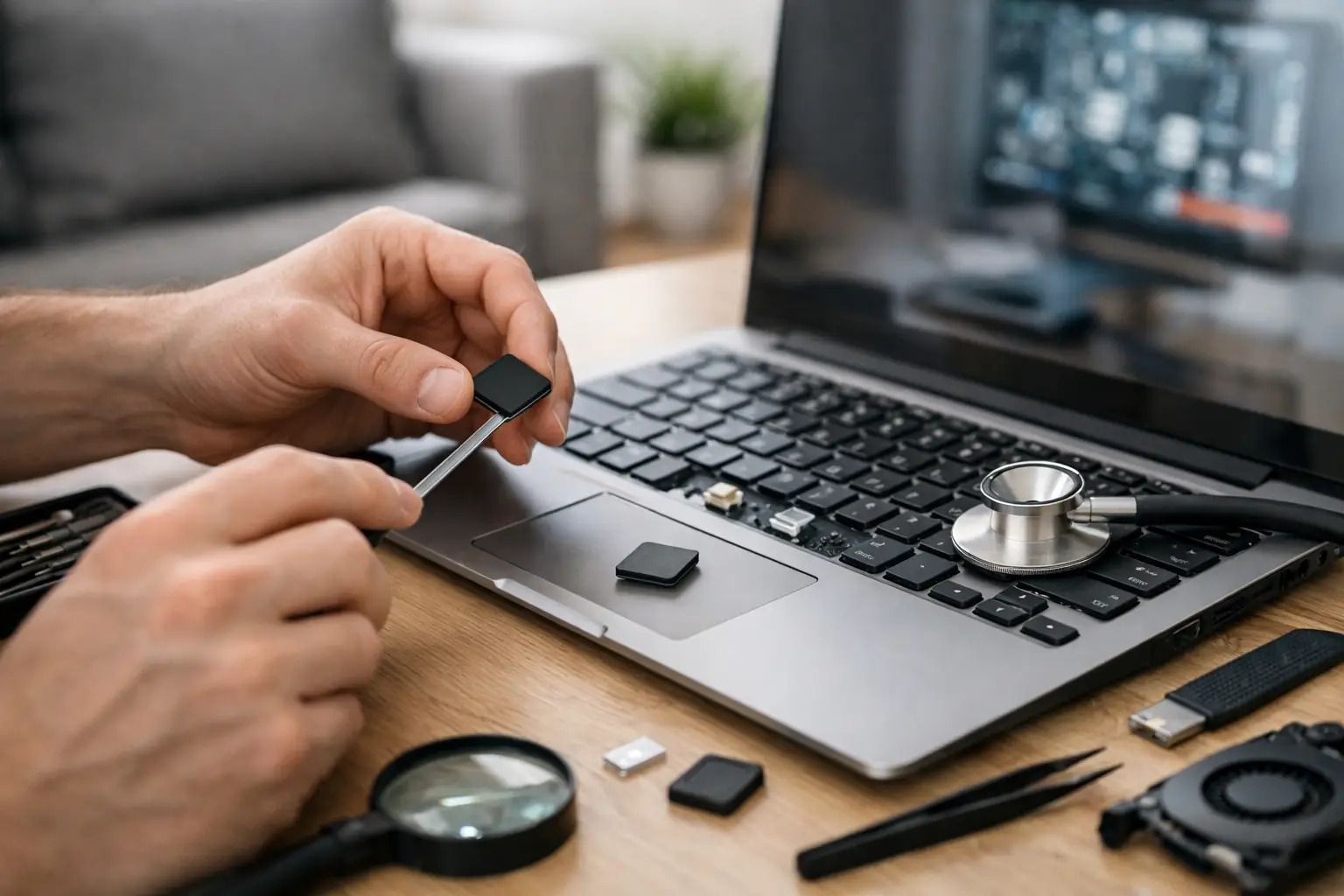

A laptop keyboard problem can stop everything fast. Whether one key will not respond, letters type twice, or the whole keyboard has gone silent, knowing how to fix laptop keyboard issues starts with identifying whether the problem is software, dirt, liquid, or damaged hardware. Some fixes take only a few minutes. Others need professional repair before the damage spreads.
Start With the Simple Checks
Before assuming the keyboard needs to be replaced, shut down the laptop completely and restart it. A frozen program, a temporary Windows or macOS glitch, or a setting changed by accident can make a working keyboard appear broken.
Try typing in more than one place, such as a browser search bar, a notes app, and the login screen. If the keyboard only fails in one program, the problem is probably with that program rather than the laptop itself. Closing and reopening the app may solve it.
If only the number keys are acting strangely, check whether Num Lock is enabled. On some laptops, turning it on changes part of the letter keyboard into a numeric keypad. Also check for a stuck Fn key, which can change what the top row and other keys do.
For a Windows laptop, an outdated or corrupted keyboard driver can also cause trouble. Restarting is the first move. If the issue remains, use an external USB keyboard if available. If the external keyboard works normally while the built-in one does not, that is a strong sign the laptop keyboard itself needs attention.
How to Fix Laptop Keyboard Keys That Stick or Do Not Work
A single sticky or unresponsive key is often caused by crumbs, dust, pet hair, or residue under the key. This is common on laptops used at the kitchen table, in classrooms, or anywhere snacks are nearby.
Turn the laptop off and disconnect its charger. Hold it at a slight angle and use short, controlled bursts of compressed air around the affected key. Do not hold the can upside down, since the propellant can leave moisture behind. A soft, dry brush can help lift surface debris from around the key edges.
Avoid spraying household cleaners directly onto a laptop keyboard. Liquid can run beneath the keys and damage the keyboard layers, touchpad, battery area, or motherboard. If the key surface is dirty, lightly dampen a microfiber cloth with isopropyl alcohol and wipe the top of the key. The cloth should be barely damp, never wet.
It is tempting to pry off a laptop keycap, but that can turn a minor issue into a broken hinge or missing key. Laptop key mechanisms are much more delicate than desktop keyboards, and designs vary by manufacturer and model. Unless you know your specific keyboard was designed for safe keycap removal, leave that step to a repair technician.
When a key still will not work after cleaning, the issue may be a damaged switch, torn keyboard membrane, or failed connection cable. Those are repair problems, not cleaning problems.
When the Keyboard Types the Wrong Letters
If the keys work but produce the wrong characters, do not rush to replace the keyboard. The keyboard layout may have been switched accidentally. This often happens after a key combination is pressed or after an update.
On Windows, check the language and keyboard layout settings. Make sure the selected layout matches a standard US keyboard if that is what you use. On a Mac, check the Keyboard settings and Input Sources. A layout set to another region can make punctuation marks, symbols, and letters appear in unexpected places.
Repeated characters can be caused by a setting called key repeat, but they can also point to debris or physical wear under a key. If every key repeats too quickly, adjust the repeat setting in your computer’s accessibility or keyboard settings. If only one or two letters double-type, cleaning may help, but replacement is often the more reliable fix.
A Keyboard That Stopped Working After a Spill
Liquid is one of the most urgent laptop keyboard problems. Coffee, soda, juice, water, and even a small amount of liquid can get under the keys quickly. Sugary drinks are especially troublesome because they leave sticky residue that continues causing corrosion after the surface looks dry.
If you spill anything on the keyboard, turn the laptop off immediately. Disconnect the charger and remove any connected accessories. If your model has a removable battery, take it out. Then place the laptop in an inverted V shape or keyboard-side down on a towel so liquid can drain away from internal components.
Do not keep using it to see whether it still works. Do not plug it in, charge it, use a hair dryer, or put it in rice. Heat can damage sensitive components, and rice does not remove sticky residue or stop corrosion. The faster the laptop is professionally opened, cleaned, and inspected, the better the chance of preventing a larger repair bill.
A keyboard may appear fine after a spill and fail days later. That delay is exactly why quick action matters. Liquid can work its way deeper into the system, affecting the keyboard cable, touchpad, battery, charging circuit, or motherboard.
Check for Software and Accessibility Settings
Sometimes the keyboard is not broken at all. Accessibility settings can make typing feel delayed, inconsistent, or impossible. On Windows, Sticky Keys and Filter Keys may change how keystrokes register. Filter Keys, for example, can ignore brief presses or repeated input, which may make you think keys have stopped working.
Turn those settings off temporarily and test the keyboard again. If the laptop keyboard starts responding normally, you have found the issue without spending money on parts.
A recent update, malware infection, or driver conflict can also affect input devices. Run a reputable security scan if the keyboard behavior began alongside pop-ups, slow performance, browser redirects, or other suspicious activity. For Windows users, updating or reinstalling the keyboard driver may help. For Mac users, a restart and software update can resolve some temporary input issues.
Still, software fixes will not repair corrosion, cracked key mechanisms, or a failed keyboard cable. If the keyboard works only intermittently, worsens when the laptop is moved, or quits after a spill or drop, hardware damage is more likely.
Know When Laptop Keyboard Repair Makes More Sense
Keyboard replacement is often the best answer when multiple keys have failed, keys are physically missing, liquid damage has occurred, or the keyboard has stopped working entirely. In many laptops, the keyboard is integrated into the top case, palm rest, or chassis. That means the repair can involve careful disassembly of the screen, battery, motherboard, and internal cables.
This is why a low-cost replacement keyboard is not always a low-cost DIY repair. The part may be inexpensive, but opening the laptop incorrectly can damage a ribbon cable, strip screws, crack the case, or create new power problems. Models with backlit keyboards, fingerprint readers, or tightly integrated top cases can be especially time-consuming.
If you rely on your laptop for school, work, bills, or family communication, an external keyboard can keep you going temporarily. It is a practical short-term solution, but it does not solve an internal keyboard that is failing because of liquid or electrical damage.
Get Straight Answers Before the Problem Gets Worse
A laptop keyboard should not be something you have to fight with every day. If cleaning and basic settings checks do not fix the issue, a technician can test the keyboard, connection cable, and underlying board to find out what actually failed. That helps avoid paying for a keyboard replacement when the real issue is software, corrosion, or a damaged internal connector.
For local customers in Aston, Havertown, Media, Springfield, and nearby communities, CNA Computer Repair & Sales can inspect laptop keyboard problems, including stuck keys, liquid damage, missing keys, and complete keyboard failure. You can get a clear explanation of the repair, straightforward pricing, and help deciding whether repair is worthwhile for your laptop.
A few careful checks can solve a simple keyboard problem. But after a spill, a drop, or signs of widespread key failure, turning the laptop off and getting help quickly is usually the smartest move.
Leave a Reply