

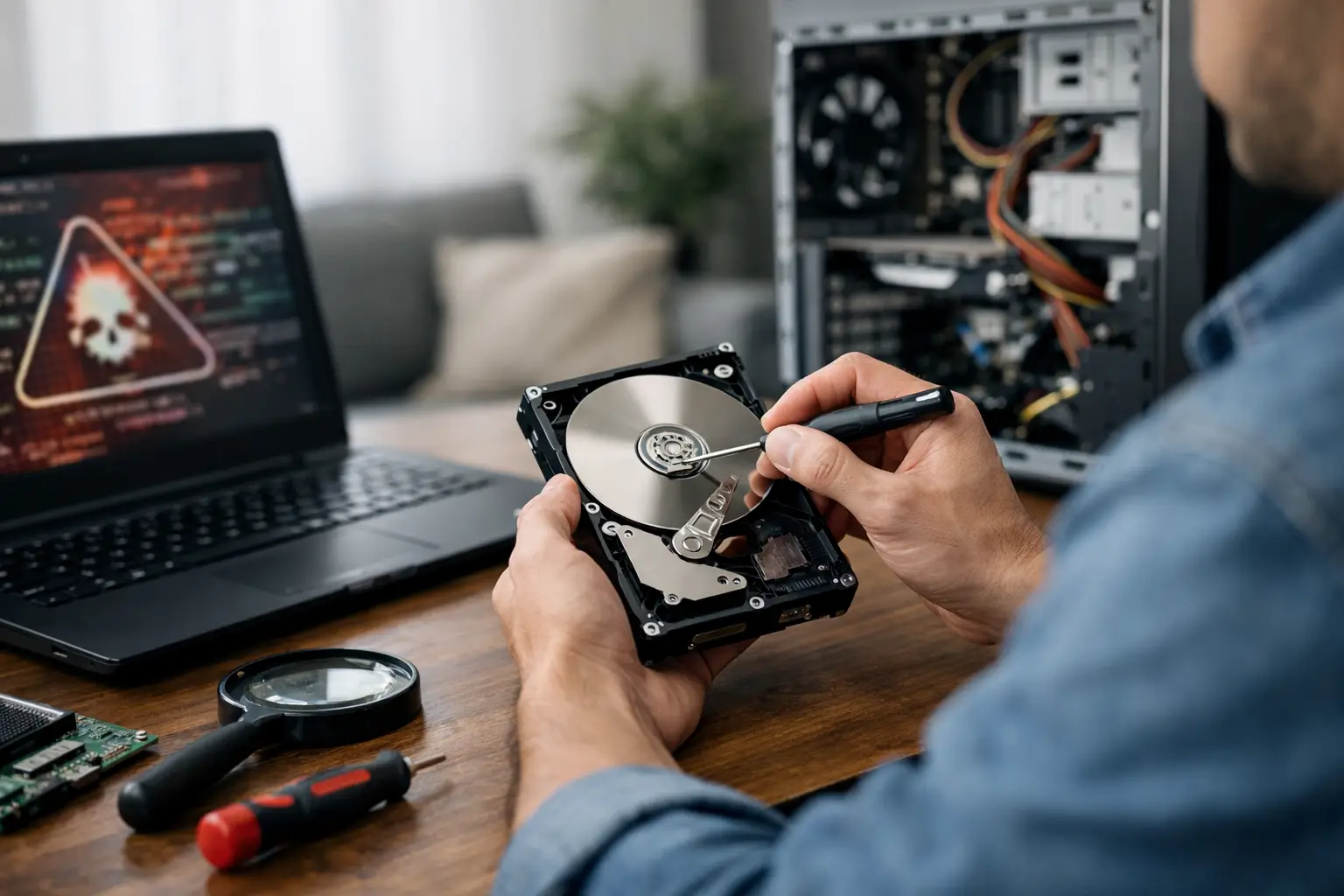

A computer that suddenly slows down, freezes while opening photos, or refuses to start can turn into a data emergency fast. Knowing how to diagnose hard drive trouble helps you separate a minor Windows or macOS issue from a failing drive that needs immediate attention. The most important rule is simple: if your files still open, back them up before running repairs.
A hard drive can fail gradually or without much warning. Traditional spinning hard disk drives often give clues, such as clicking noises or repeated freezes. Solid-state drives (SSDs) are quieter and faster, but they can also fail, sometimes with few physical symptoms. In either case, avoid repeatedly restarting a computer that is making unusual noises or cannot find its operating system. Every extra attempt can make file recovery more difficult.
Start With the Warning Signs
Hard drive problems do not always mean the drive itself is bad. A virus, failing RAM, an overheating computer, a loose cable, or a damaged power supply can create similar symptoms. Still, certain signs deserve quick action because they commonly point to drive trouble.
Watch for a computer that takes much longer than usual to boot, freezes during file transfers, displays frequent error messages when opening files, or reports that a disk needs to be repaired. Files that disappear, become corrupted, or will not save are also serious red flags. On a Windows PC, you may see messages about a boot device not being found, a blue screen, or a drive that asks to be formatted even though it contains your data.
With a mechanical hard drive, clicking, grinding, beeping, or repeated spin-up and spin-down sounds are especially concerning. Turn the computer off if those sounds are new and persistent. Do not keep testing it just to see whether it will start one more time.
An SSD will not click, so the warning signs are usually performance related: sudden read-only behavior, files that will not copy, unexplained crashes, or a drive that vanishes from the computer. A full SSD can also perform poorly, so check available storage before assuming hardware failure.
Protect Your Files Before You Repair Anything
If the computer is still usable, copy the files you cannot replace first. Start with documents, family photos, work files, financial records, school projects, and anything stored only on that machine. Move them to an external drive, a trusted cloud storage account, or another computer.
Do not begin with a large system backup if the drive is clearly failing and struggling to stay connected. Copying a complete drive can put it under more stress and may take too long. Your irreplaceable files come first.
If the drive is not detected, makes clicking sounds, or has been exposed to water, skip do-it-yourself repair tools. Do not open the drive enclosure, put it in a freezer, or download random “fix” software. These old internet remedies can cause more damage. A professional data recovery assessment is the safer next step when the information matters.
How to Diagnose Hard Drive Issues in Windows
Windows includes a few useful checks, but the order matters. First, look for obvious signs that the drive is being recognized. Open File Explorer and see whether the drive appears with the expected storage capacity. If an external drive appears and disappears, try a different USB port and cable before blaming the drive itself.
Next, check the drive’s health information. In Windows, search for “Create and format hard disk partitions” to open Disk Management. This tool can show whether a connected drive is online, missing a drive letter, unallocated, or reporting a file system issue. If a drive appears as unallocated but previously held files, do not create a new partition. That can complicate recovery.
You can also check basic SMART status, which is health information reported by many drives. Search for Command Prompt, open it as administrator, and run:
`wmic diskdrive get status`
A result of “OK” is not a complete guarantee that the drive is healthy, but a warning such as “Pred Fail” means you should back up immediately and plan for replacement. More detailed diagnostic programs can read additional SMART data, but a failing drive should not be subjected to lengthy scans before important files are protected.
Windows Error Checking can help with a drive that is still stable. In File Explorer, right-click the affected drive, choose Properties, select Tools, then choose Check under Error checking. This can identify file system errors. It is useful when the issue is caused by an improper shutdown or corrupted file structure rather than physical drive damage.
Be cautious with CHKDSK. It can repair logical file system errors, but it can also take a long time and place heavy demands on a failing drive. If you hear clicking, cannot access important files, or suspect physical damage, back up first or stop and get help. Repairing the file system is not the same as saving the data.
Check a Mac Hard Drive With Disk Utility
On a Mac, open Disk Utility through Applications, Utilities. Select View, then Show All Devices, so you can see both the physical drive and its volumes. If the internal or external drive is listed, select the volume and run First Aid.
First Aid checks and repairs certain directory and file system errors. It can be a practical fix after an unexpected shutdown, a forced restart, or an external drive that was unplugged without being ejected. If Disk Utility reports that it cannot repair the disk, do not keep rerunning it over and over. Back up what you can, then arrange for service or recovery.
If your Mac cannot start normally, you may be able to enter macOS Recovery and open Disk Utility from there. That does not mean the drive is safe to keep using. A drive that repeatedly needs repair is often nearing the end of its reliable life.
Rule Out the Simple Problems
A drive that does not appear may have a connection problem rather than an internal failure. For an external drive, test a different cable, port, and computer. Use a direct USB connection instead of an unpowered hub. If the drive has its own power adapter, make sure it is receiving power.
For a desktop computer, an internal hard drive can occasionally have a loose SATA data cable or power cable. If you are comfortable opening the case and the computer is fully powered off and unplugged, checking those connections may be reasonable. For most laptop owners, internal drive inspection is less straightforward and can risk damage if the device is opened incorrectly.
Also consider whether the problem affects one drive or the entire computer. If every program freezes and the system runs hot, the issue could be memory, malware, or overheating. If only one external drive fails to mount on multiple computers, the drive or its enclosure is the likely problem.
Know When a Drive Should Be Replaced
A drive that passes a quick test is not automatically trustworthy. Replace it if it has recurring errors, bad sectors, failed SMART warnings, repeated file corruption, or unreliable connections. Hard drives are not designed to last forever, and waiting for total failure can turn a simple replacement into a data recovery job.
When replacing a working-but-aging drive, you may be able to clone it to a new SSD. This is often a good upgrade for older desktops and laptops because an SSD can make startup and everyday tasks feel much faster. However, cloning is not always the right choice. If the old drive is unstable, corrupted, or physically failing, a clean operating system installation and selective file recovery may be safer.
For a computer that will not boot, a technician can test whether the drive is detected, assess its health, and determine whether your files can be copied or require more advanced recovery. The right path depends on the drive’s condition and how valuable the missing data is.
Get Help Before a Small Problem Becomes Data Loss
Call for professional help right away if the drive clicks or grinds, the computer says no boot device is found, the drive disappears intermittently, or the files are too important to risk. This is especially true for business records, years of family photos, tax documents, and school or work projects with no backup.
CNA Computer Repair & Sales can diagnose storage problems, replace failing hard drives or SSDs, and help with data recovery options without making you sort through technical jargon on your own. For customers in Aston, Havertown, and nearby communities, getting an answer quickly can make the difference between a straightforward repair and permanent data loss.
Your computer does not have to be completely dead before you act. If it is giving you warning signs, save the files you can now and have the drive checked while there is still time to make the repair simple.
Leave a Reply