

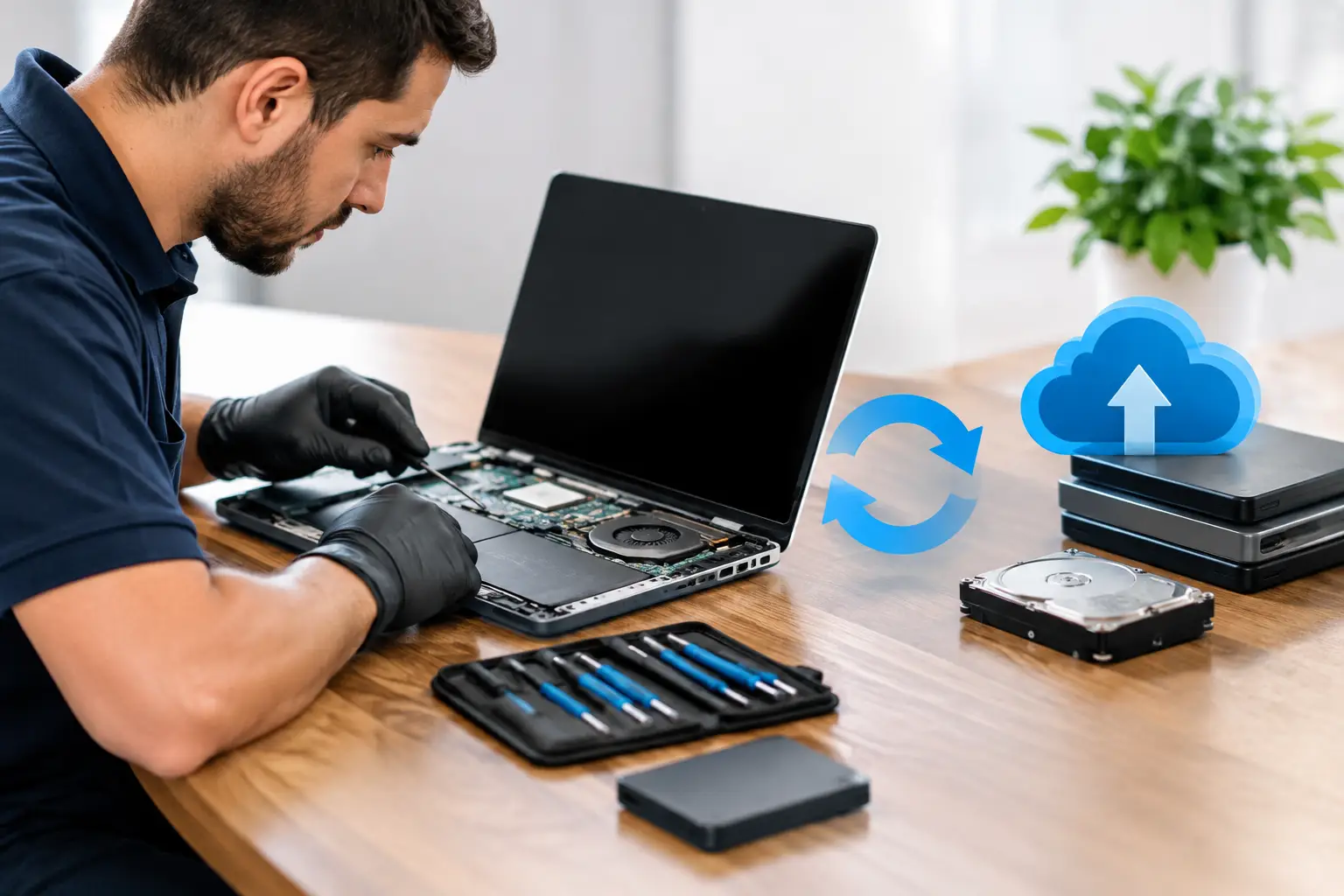

A laptop that will not start, a phone dropped in water, or a hard drive making clicking sounds can turn an ordinary day into a serious problem fast. That is when the difference between data recovery versus backup matters most. Both can save your photos, documents, messages, and business files, but they work at very different points in the problem.
A backup is your safety net before something goes wrong. Data recovery is the effort to retrieve files after something has already gone wrong. Knowing which one you need can save time, money, and a lot of frustration.
Data Recovery Versus Backup: The Simple Difference
Think of a backup as a copy of your data stored somewhere separate from your everyday device. It could be an external hard drive, a cloud storage account, or another computer. If your laptop fails or your phone is lost, you can restore your files from that copy.
Data recovery is a repair service used when there is no usable backup, the backup is incomplete, or the original files are no longer accessible. A technician may be able to recover data from a failed hard drive, damaged laptop, water-damaged phone, corrupted storage device, or computer that will not boot.
The biggest difference is timing. Backup is preventive. Data recovery is reactive.
That does not mean data recovery is a replacement for backing up your files. Recovery can be successful, but it is not guaranteed. The condition of the device, the type of failure, and what happened after the failure all affect the outcome.
What a Backup Can Protect You From
A good backup protects against everyday disasters that happen without warning. Your computer may be hit by ransomware. A phone can be stolen. A child can accidentally delete an important folder. A Windows update, failed hard drive, or damaged charging port can leave you unable to access what is stored on a device.
When your backup is current, the device itself becomes less of a crisis. You may still need a repair or replacement, but your personal files are not trapped with the broken hardware.
For most households, a practical approach is to keep important files in two places: on the device you use and in a separate backup location. Photos, tax documents, schoolwork, family videos, passwords, and small-business records deserve extra attention. These are often the files people realize they need only after they are gone.
Cloud backups are convenient because they can update automatically and are available from another device. External drives are useful because they provide a local copy you control. Each has trade-offs. Cloud storage depends on your account access and internet connection. An external drive can fail, be misplaced, or sit unplugged for months without receiving new files.
Using both is often the safest choice, especially for files that cannot be replaced.
When You Need Data Recovery Instead
Data recovery becomes necessary when files are missing, inaccessible, or trapped on a device that has failed. This can happen even to careful people with good habits. A backup might be out of date, a folder may not have been included, or the backup drive could be the device that failed.
Common situations include a computer that powers on but will not load Windows or macOS, a hard drive that clicks or is not detected, a USB drive that suddenly asks to be formatted, or a phone that has a damaged screen and cannot be unlocked. Water damage, physical drops, virus infections, and accidental deletion can also create recovery situations.
Not every problem requires advanced recovery work. Sometimes the drive is healthy and the issue is a bad operating system, failed battery, broken screen, or damaged charging port. Repairing that issue may restore access to the files. Other times, the storage device itself is damaged and needs a more careful recovery process.
The key is to avoid guessing when the data matters. Repeated restarts, random software downloads, and attempts to force a damaged drive to work can make recovery harder.
What to Do When a Device Fails
Your first moves after a device failure can make a real difference. If a hard drive is clicking, grinding, or repeatedly disconnecting, stop using it. Do not keep rebooting the computer to see if it comes back. Those sounds can point to a mechanical problem, and continued use may cause further damage.
If you accidentally delete files, avoid saving new files to that same device. New data can overwrite the space where deleted files still exist, reducing the chance of recovery.
For water-damaged phones, tablets, and laptops, turn the device off if possible and do not charge it. Do not rely on rice or a hair dryer. Heat, residue, and electrical power can make the damage worse. A prompt inspection gives you the best chance of protecting both the device and the files on it.
If the device is infected with a virus or ransomware, disconnect it from Wi-Fi and other networks. Do not pay a ransom without first understanding your options. In some cases, files can be removed, restored from a clean backup, or recovered depending on the type of infection.
Why Backup Is Still Cheaper Than Recovery
Data recovery can be extremely valuable when it saves irreplaceable wedding photos, years of family videos, client documents, or a student’s only copy of a major project. But it can take time and involves uncertainty. A damaged drive may require specialized work, and severe physical damage can limit what is possible.
Backing up your files costs far less than trying to recover them after a failure. More importantly, it gives you choices. If your laptop needs a new hard drive or your phone cannot be repaired, you can move your data to another device and get back to normal sooner.
Still, do not assume a backup means you are fully protected. Check it. Open a few files occasionally. Make sure recent photos are syncing. Confirm that your backup drive includes the folders you actually use. A backup that has not run in a year may be better than nothing, but it will not restore the files created last week.
A Practical Backup Plan for Everyday Users
You do not need an IT department to protect your files. Start with the data you would be upset to lose: photos, documents, desktop files, downloads, email archives, and folders used for work or school.
Set up automatic cloud backup for your phone and computer if it fits your budget and storage needs. Then create a second copy on an external drive at regular intervals. For many people, once a week is reasonable. If you run a small business, handle client files, or create new work every day, more frequent backups make sense.
Keep the external drive separate from the computer when you are not backing up. If it stays connected all the time, a power surge, malware attack, or physical accident could affect both devices at once.
Also remember that syncing and backup are not always the same thing. A synced folder may copy deletions or corrupted files across every connected device. A true backup should give you a way to restore an earlier version when needed.
Can Data Be Recovered From Any Device?
Sometimes, but not always. Recovery depends on the storage type and the damage. Traditional hard drives, solid-state drives, USB flash drives, memory cards, phones, tablets, and Macs can all experience data loss. However, newer devices may use encryption and tightly integrated hardware, which can make recovery more complicated when the device will not power on.
Physical damage is not automatically the end of the story. A laptop with a broken screen may still have healthy files. A phone with a bad battery may be repairable long enough to back up its contents. On the other hand, a severely damaged storage chip or an overwritten drive may have limited recovery options.
This is why a clear diagnosis comes first. You need to know whether you are dealing with a repair that restores access, a recoverable storage problem, or data that may already be protected elsewhere.
Do Not Wait for a Second Failure
The best time to create a backup is before your computer starts acting strange. The second-best time is right now, while you can still open your files. If your device is slow, making unusual noises, overheating, failing to charge, or randomly shutting down, back up what matters immediately.
And if your files are already inaccessible, stop using the device and get a professional assessment before trying random fixes. CNA Computer Repair & Sales helps local customers sort out whether a device needs repair, data recovery, or both – with straightforward answers and practical options. Your photos, documents, and memories are worth protecting before a small device problem becomes a permanent loss.
Leave a Reply