

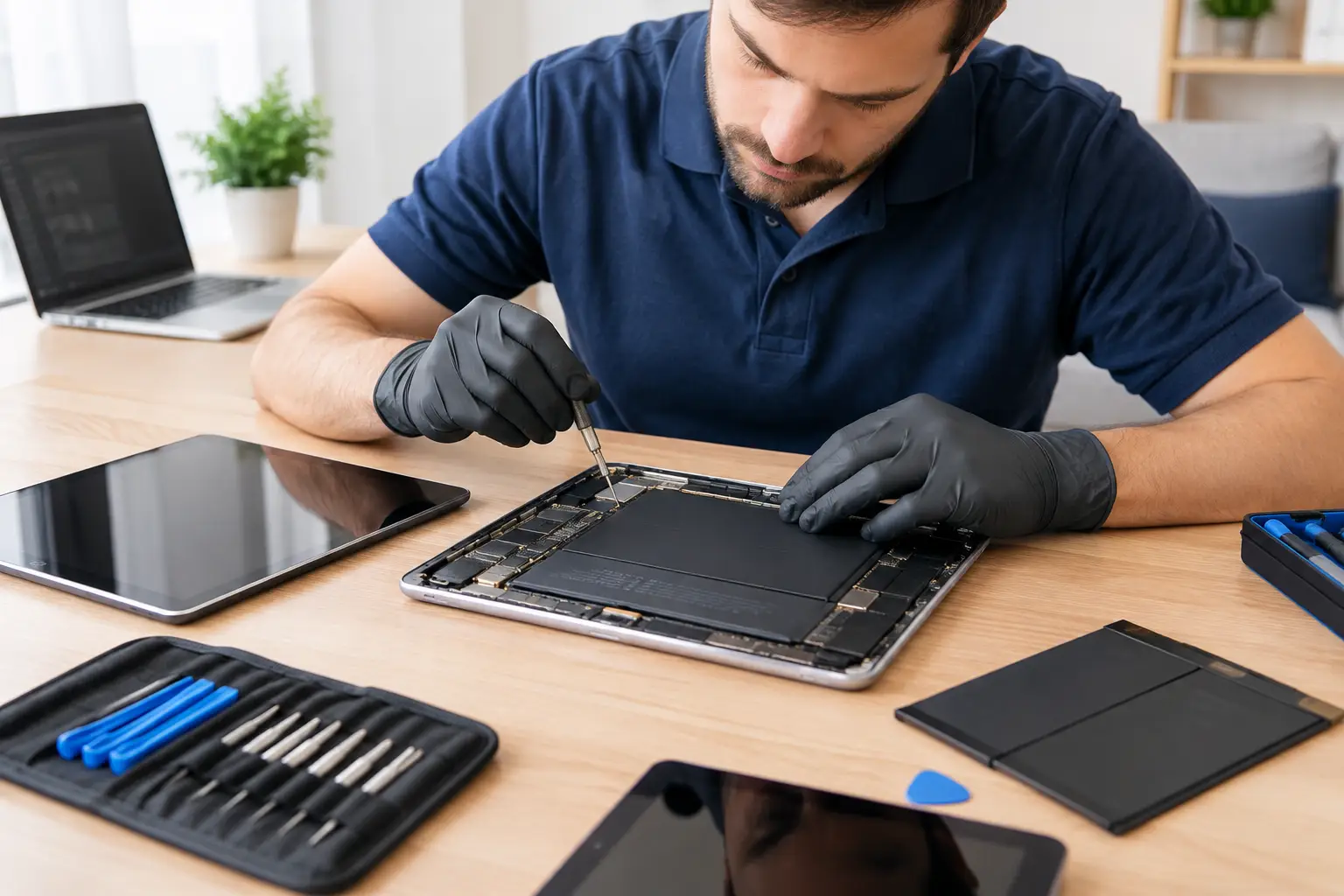

A tablet that will not charge the night before a school project, a cracked screen after one bad drop, or a battery that dies before lunch can disrupt your whole day. This tablet repair guide helps you identify what may be wrong, what you can safely try at home, and when professional repair is the faster and more affordable choice.
The goal is not to turn every tablet owner into a technician. It is to help you avoid losing photos, files, and money by making the right next move. Some problems have a simple answer. Others look minor but can get worse quickly if the device is charged, forced open, or repeatedly restarted.
Tablet Repair Guide: Start With the Symptoms
Before trying fixes, pay attention to exactly what changed. Did the tablet fall? Get wet? Start acting up after an update? Does it power on but show no picture, or is it completely unresponsive? Those details matter because a black screen, for example, can point to a drained battery, a failed charging port, a damaged display, or a deeper board issue.
A quick check can rule out the obvious. Use a known-good charging cable and wall adapter, not a computer USB port. Look inside the charging port with a flashlight for compacted lint or visible damage. If the tablet is frozen, try a forced restart using the button combination for your device. On many iPads and Android tablets, this can resolve a temporary software crash.
If it comes back on, back up your important data right away. A device that has started freezing, overheating, or restarting without warning may work today and fail tomorrow.
Cracked Screens Need More Than a Screen Protector
A hairline crack may seem harmless, especially if the tablet still responds to touch. The problem is that glass damage can spread with normal pressure, allow moisture and dust inside, and create sharp edges. A screen protector can help hold small cracks together temporarily, but it does not repair the glass or restore the tablet’s seal.
If the display has black spots, colored lines, flickering, dead touch areas, or glass lifting from the frame, do not wait too long. Those symptoms often mean the display assembly has been damaged beneath the surface. Continuing to press hard on the screen can make the repair more complicated.
Screen repair is usually worthwhile when the tablet powers on normally and the cost is reasonable compared with replacement. It may be less sensible for a very old, low-value tablet with several other problems. A repair professional can give you a clear estimate before work begins, so you can decide based on facts rather than guesswork.
Battery Problems: When Charging Is Not the Real Issue
Tablets are often blamed for having a bad battery when the real trouble is a worn cable, weak power adapter, dirty port, or software running heavily in the background. Start by testing another certified cable and adapter. Then leave the tablet charging for at least 30 minutes before assuming it is dead.
A battery may need replacement when the tablet drains unusually fast, shuts down with charge remaining, becomes hot during ordinary use, or only works while plugged in. Battery health naturally declines over time, but swelling is different. If the screen or back panel is separating from the frame, stop charging and stop using the tablet immediately. A swollen battery can damage the display and presents a safety concern.
Do not try to puncture, flatten, or force a swollen battery back into place. This is a repair that needs proper handling and replacement parts.
Charging Port Issues Can Look Like Battery Failure
If your cable only works at a certain angle, falls out easily, or requires pressure to charge, the port may be clogged, loose, or damaged. Pocket lint gets compressed into charging ports more often than most people expect. Carefully removing loose debris with a nonmetal tool can sometimes help, but do not scrape aggressively or insert pins, paper clips, or liquid cleaners.
When cleaning does not solve it, the port may need repair. Repeatedly bending the cable to find a working position can damage the cable and put extra stress on the tablet’s port. Getting the issue checked early can prevent a small connection problem from becoming a no-power problem.
What to Do After Water Damage
Water damage is one of the few tablet problems where speed truly changes the outcome. If a tablet is dropped in a sink, splashed, or exposed to a spilled drink, turn it off immediately if possible. Remove the case and disconnect any charging cable or accessories.
Do not charge it to see whether it still works. Electricity and moisture can create corrosion or a short circuit, sometimes hours after the spill. Also skip the rice. Rice does not remove moisture from inside the device, and dust or starch can create additional problems.
Instead, gently dry the exterior, keep the tablet powered off, and have it evaluated as soon as possible. The longer moisture sits on internal components, the less predictable the repair becomes. Fast professional cleaning gives the device its best chance and may protect the files stored on it.
Slow, Frozen, or Glitchy Tablets May Need Software Help
Not every repair requires replacing a part. A tablet that is slow, freezing, showing pop-ups, or running out of storage may have a software issue. Begin with the basics: restart the device, update its operating system if it has enough battery power, remove apps you no longer use, and check available storage.
If the problem began after installing an unfamiliar app, remove that app first. On Android tablets, unwanted apps can cause intrusive ads, poor performance, and excessive battery drain. On iPads, repeated crashes may be tied to a specific app, low storage, or an incomplete update.
Be cautious with factory resets. A reset can solve some stubborn software problems, but it erases local data unless you have a current backup. If family photos, notes, school documents, or business files are on the tablet, data recovery and backup should be discussed before any major reset or repair attempt.
When DIY Tablet Repair Is Worth Trying
A few low-risk steps are reasonable for most owners: testing a different charger, restarting the device, clearing storage, removing a troublesome app, and checking for updates. These actions do not require opening the tablet or risking internal components.
DIY repair becomes risky when it involves heat, adhesive, batteries, screens, charging ports, or tiny internal cables. Tablets are tightly assembled, and many modern screens are bonded to the frame. A repair kit may look inexpensive, but a torn display cable, damaged battery, or poorly seated screen can turn one repair into several.
It also depends on the tablet. A newer iPad, Samsung Galaxy Tab, or tablet holding valuable data is usually worth having inspected professionally. An older basic tablet with a cracked screen and weak battery may be better replaced. A straightforward estimate helps make that decision easier.
Get Clear Answers Before You Approve a Repair
When you bring in a tablet, ask what is causing the issue, whether the quoted price includes parts and labor, and whether your data should be backed up first. You should also know whether the repair affects water resistance, if applicable, and what kind of part will be used.
At CNA Computer Repair & Sales, customers can speak with a live person about the problem before committing to a repair. For many common screen, battery, charging, and software issues, fast local service can save you the cost and hassle of replacing a device that still has plenty of life left.
If your tablet is overheating, swollen, wet, cracked badly, or refusing to charge, do not keep testing it until it fails completely. Set it aside, protect your data if you safely can, and get a clear repair opinion while the problem is still manageable.
Leave a Reply