

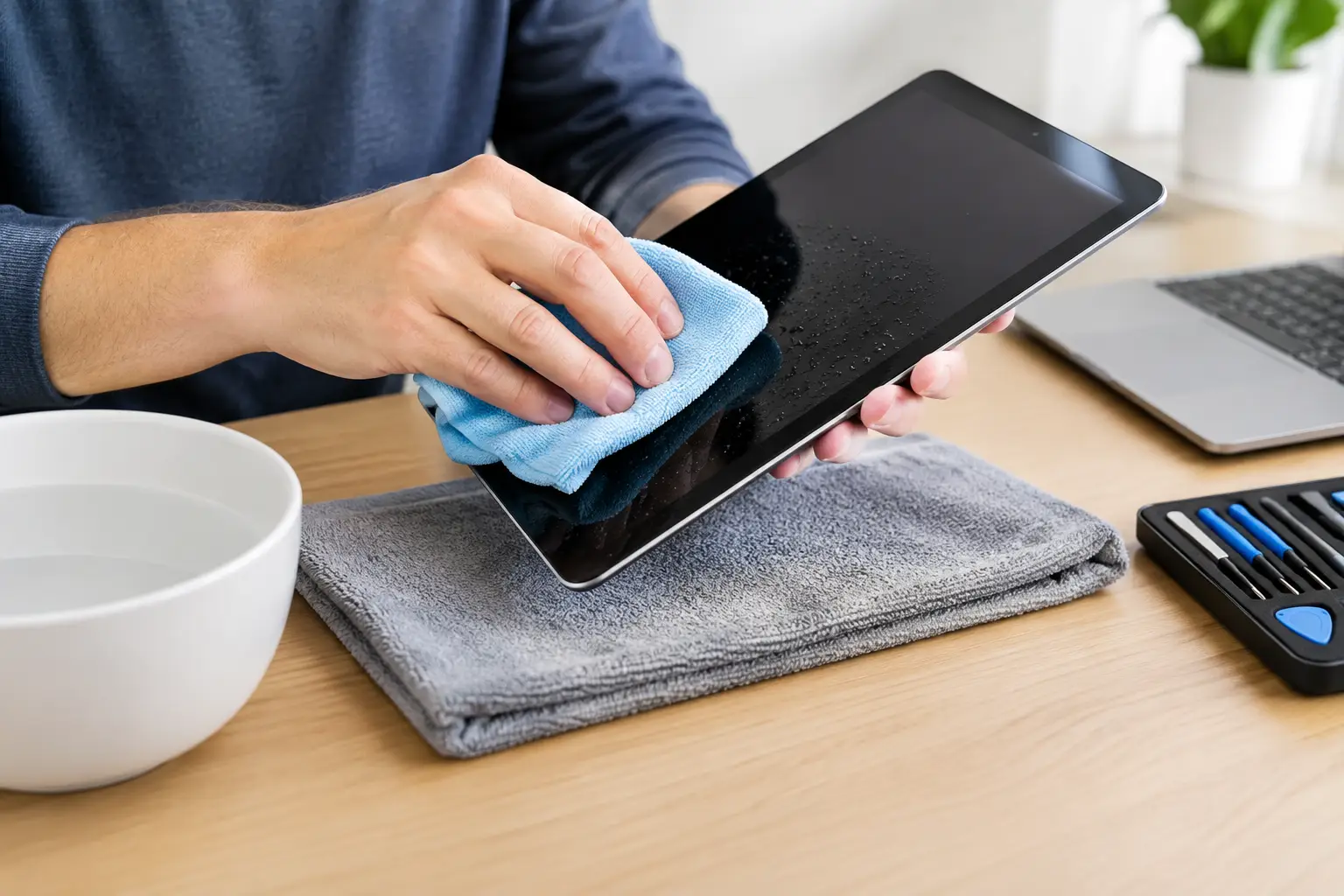

A tablet can go from working normally to completely unresponsive in seconds after a spill, bath-time accident, or rainy-day drop. If you are searching for how to dry a wet tablet, the most useful answer is also the least exciting: turn it off, keep power away from it, remove surface moisture, and get professional help quickly if liquid may have reached the inside.
The goal is not simply to make the outside feel dry. Water, soda, coffee, and other liquids can travel through charging ports, speakers, buttons, screen edges, and tiny gaps in the frame. A tablet may appear fine at first, then fail hours or days later as moisture and corrosion damage internal components.
What to Do the Moment Your Tablet Gets Wet
Time matters. Every minute that liquid remains inside a powered device raises the chance of an electrical short or corrosion. Start by removing the tablet from the liquid immediately and placing it on a clean, dry towel.
If the tablet is still on, power it off right away. Do not take time to test the touchscreen, open apps, or check whether the speakers still work. Holding the power button until the device shuts down is the safest first move. If it has already turned itself off, leave it off.
Next, disconnect everything attached to it. Remove the charging cable, headphones, keyboard case, USB accessories, and stylus if applicable. Take off the case or cover as well. Cases can trap water against ports, buttons, and screen edges, even after the tablet looks dry.
Gently blot the outside with a soft, lint-free cloth. Pay close attention to the charging port, headphone jack, speaker openings, volume buttons, power button, and camera area. Hold the tablet with ports facing downward so gravity can help liquid drain out. Do not shake it hard. Aggressive shaking can push moisture farther into the device.
How to Dry a Wet Tablet Safely
Once you have removed visible moisture, place the tablet in a dry area with good air circulation. Set it on its edge or prop it up so any remaining liquid can drain from the openings. A room-temperature fan moving air nearby can help, but do not place the tablet directly against a powerful fan or heater.
Leave the device powered off for at least 24 to 48 hours. The exact drying time depends on how much liquid it encountered, how long it was exposed, whether it was submerged, and which openings were affected. A few drops on the screen are very different from a tablet that fell into a sink.
It is tempting to turn it on after a few hours just to see whether it survived. Resist that temptation. Charging or powering on a tablet before the inside is dry can cause more damage than the original spill. Even if the screen lights up, moisture may still be sitting near the battery, charging circuit, display connectors, or logic board.
If your tablet has a removable SIM card tray, carefully remove it and blot the tray. This can provide a little extra ventilation. Do not try to open the tablet’s main housing unless you have the proper tools and repair experience. Modern tablets use delicate cables, adhesives, and batteries that are easy to damage.
Do Not Use Heat to Dry a Tablet
A hair dryer, oven, radiator, space heater, or microwave can turn a recoverable problem into an expensive one. High heat can warp the screen, weaken adhesives, damage the battery, and force moisture deeper into the tablet.
Direct sunlight is not a good solution either. The tablet may overheat before the internal moisture has a chance to evaporate safely. Keep it in a cool, dry, ventilated area instead.
Skip the Rice Bag
Putting a wet tablet in rice is one of the most common pieces of bad device advice. Rice does not reliably remove moisture from inside a sealed electronic device, and rice dust can get into the charging port and other openings. It also delays the repair steps that may actually save the tablet.
Silica gel packets can help reduce humidity in a sealed container, but they are not a substitute for professional cleaning when liquid has entered the device. They will not remove sticky residue from soda, coffee, juice, salt water, or chlorinated pool water.
Why the Type of Liquid Matters
Clean water is not harmless, but it is usually less destructive than liquids containing sugar, salt, acids, or chemicals. A tablet exposed to coffee, soda, sports drinks, wine, seawater, or cleaning products needs prompt attention because residue stays behind after the liquid evaporates.
That residue can corrode connectors and circuits over time. This is why a tablet may work again after drying but develop charging problems, screen flickering, poor audio, battery drain, or random shutdowns later. Drying is only part of the process. Proper internal cleaning may be needed to stop ongoing damage.
Salt water and pool water are especially urgent. Do not wait a day or two to see what happens. Keep the device off and bring it in for water-damage inspection as soon as possible.
When You Should Bring a Wet Tablet to a Repair Shop
Professional repair is the smart choice after a full submersion, a spill near a charging port, or any exposure to sugary or salty liquid. It is also worth bringing the tablet in if it was powered on when it got wet, even if it seems normal now.
Watch for warning signs after the tablet has had time to dry. These include a screen that flickers or shows lines, muffled speakers, a camera that looks foggy, charging that works only at certain angles, overheating, rapid battery loss, or a device that will not power on. Do not repeatedly plug in a tablet that will not charge. That can worsen internal damage.
A repair technician can inspect the device for moisture, corrosion, damaged connectors, battery issues, and charging problems. Fast service matters because corrosion does not wait for a convenient time. For local customers in Havertown, Aston, Media, Springfield, and nearby Delaware County communities, CNA Computer Repair & Sales can assess water-damaged tablets and explain the repair options in plain language before work begins.
Protect Your Data Before Testing the Tablet Again
If the tablet contains schoolwork, family photos, business documents, or notes you cannot replace, be extra cautious. Repeatedly trying to power it on may reduce the chance of recovering that data if there is a short or board-level failure.
After the recommended drying period, test the tablet only once. Turn it on without connecting it to a charger. If it starts normally, back up important files immediately using your usual cloud backup or computer connection. Then monitor it for charging, screen, sound, camera, and battery problems over the next several days.
If it does not turn on, gets unusually hot, smells burnt, or displays a warning about moisture in the charging port, stop testing it. Keep it unplugged and have it checked. A tablet that is repaired early may need cleaning or a replacement part; one that keeps being powered on while wet can need much more extensive work.
A Better Response Than Waiting and Hoping
Knowing how to dry a wet tablet can prevent a bad situation from getting worse, but home drying has limits. Powering the device down, removing accessories, blotting it carefully, avoiding heat, and giving it time are the right immediate steps. They do not guarantee that liquid never reached the internal electronics.
When the tablet holds information you need or the spill involved more than a few drops of clean water, treat it like the urgent repair problem it is. Getting a clear diagnosis quickly gives you the best chance of saving both the device and the files you depend on.
Leave a Reply