

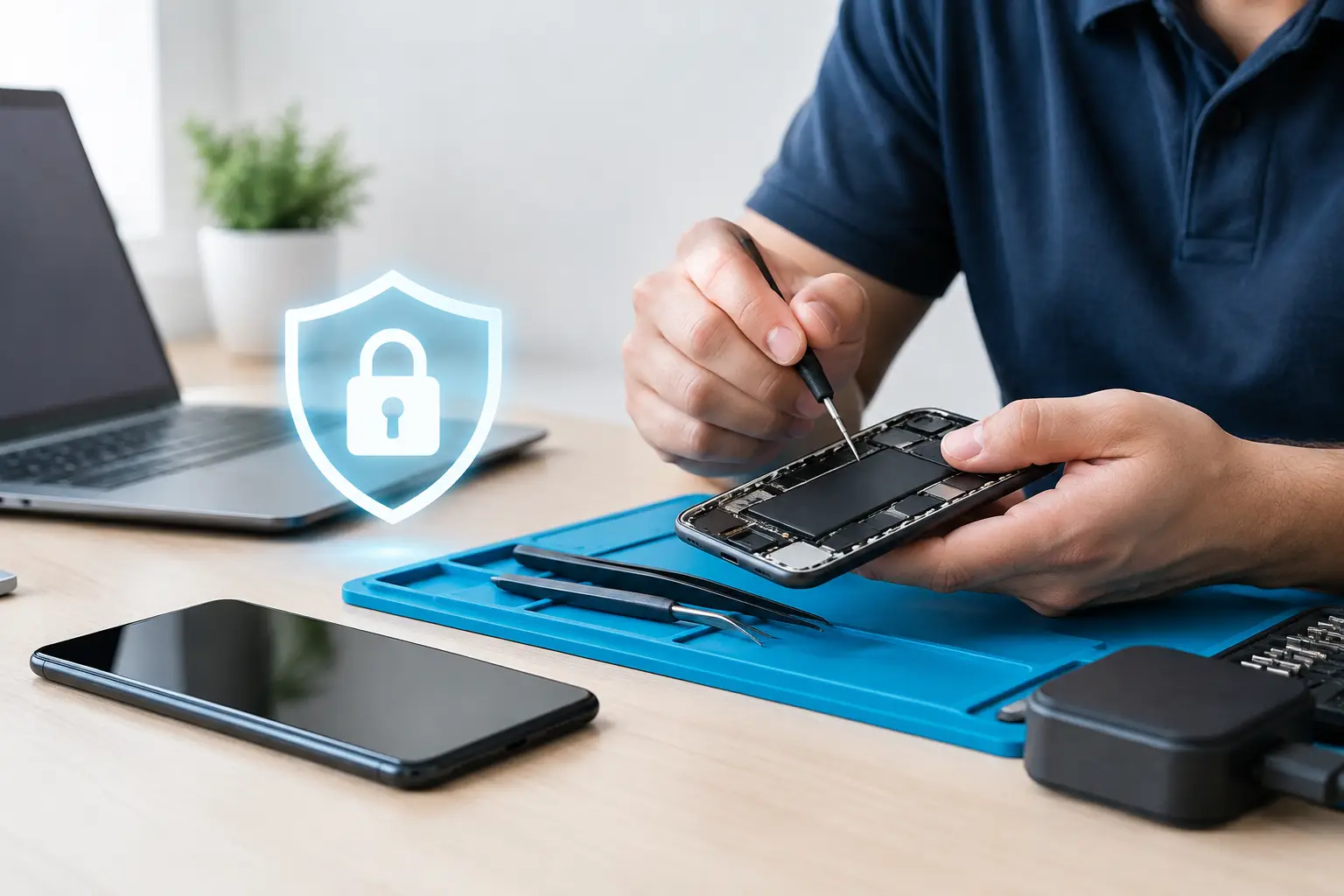

A cracked screen, dying battery, or phone that will not charge can feel urgent enough to fix immediately. But before handing it over, most people have one big question: does phone repair erase data? Usually, no. Many common repairs leave your photos, contacts, apps, messages, and files exactly where they are. Still, there are situations where data loss is possible, especially when a phone has serious software trouble, water damage, or a failing motherboard.
The safest approach is simple: back up your phone before any repair whenever you can, then tell the technician what matters most to you. A good repair shop should explain whether your specific issue creates a data risk before work begins.
Does Phone Repair Erase Data? The Short Answer
A standard hardware repair does not normally erase your data. Replacing a cracked screen, worn battery, charging port, camera, speaker, or back glass generally involves working on physical components, not wiping the phone’s storage.
Your data is stored in the phone’s internal memory, which is separate from many of the parts that commonly fail. If your iPhone or Android phone turns on and works normally apart from the damaged part, there is a good chance your information will remain intact after repair.
That said, no honest technician can promise zero risk in every case. Phones are compact devices with delicate connectors, aging components, and sometimes hidden damage. A phone that was dropped hard, exposed to water, stuck in a boot loop, or unable to power on may have a deeper issue than a screen or battery alone.
Repairs That Usually Keep Your Data Safe
Most everyday phone repairs are low-risk for data loss. A screen replacement is the most common example. The display may be shattered or unresponsive, but the phone’s storage can still be completely untouched. Once the new screen is installed, your home screen, photos, messages, and apps should look just as they did before.
Battery replacement is also normally safe for your data. A weak battery can cause random shutdowns, fast battery drain, or a phone that only works while plugged in. Replacing it does not require erasing the device.
The same is generally true for charging port repair, speaker repair, microphone repair, camera replacement, button repair, and back glass repair. These jobs may require carefully opening the phone and disconnecting internal parts, but they do not typically require a factory reset.
Even so, backing up is still smart. It protects you not only from the repair process, but also from the possibility that an already-damaged phone gets worse before it can be fixed.
Why a screen repair can still feel risky
A broken screen sometimes makes people think their data is gone because they cannot see or use the phone. In many cases, the phone is still running normally underneath. It may ring, vibrate, receive notifications, or connect to a computer, but the display is too damaged to use.
A new screen can make that existing data accessible again. This is especially important when you need photos, contacts, school files, work messages, or two-factor authentication codes that are only available on the phone.
When Data Loss Is More Likely
Some repairs involve more uncertainty because the phone itself is unstable. Software troubleshooting may require updating the operating system, restoring the device, or resetting it to rule out corrupted settings. A factory reset erases locally stored data, so your technician should tell you before taking that step.
Water damage is another situation where the answer depends. Liquid can damage the screen, battery, charging system, motherboard, and internal storage over time. A phone might work for a few hours or days, then stop turning on as corrosion spreads. If the phone still powers on after water exposure, back it up immediately. Do not wait until the next day.
Motherboard damage can also put data at risk. The motherboard contains the processor, memory, and other essential components. On newer phones, security encryption means data recovery can be difficult or impossible if the original board cannot be repaired enough to boot the phone. Replacing a motherboard may make the phone functional again, but it does not transfer your old data to the replacement board.
A phone stuck on the Apple logo, frozen during an update, or repeatedly restarting may need software repair. Sometimes that can be done without a reset. Other times, a restore is the only practical fix. Ask whether there is a non-erasing option to try first.
Back Up Before You Bring Your Phone In
If your phone can still be unlocked and connected to Wi-Fi, create a backup before scheduling repair. For iPhones, use iCloud Backup or back up to a Mac or PC. For Android phones, use your Google account backup and confirm that photos are syncing through Google Photos or your preferred photo service.
Do not assume a cloud account means everything is backed up. Open the backup settings and look for a recent backup date. Check that your photos, contacts, messages, and important apps are included. If you use an authenticator app, secure your recovery codes or make sure it is syncing correctly before the repair.
If the screen is broken but the phone still powers on, a repair shop may be able to install a working screen temporarily or complete the screen repair so you can access and back up your data. If the phone will not turn on, do not keep forcing it to charge or restart, particularly after water exposure. That can make a recoverable issue worse.
What to Ask Before Authorizing a Repair
A straightforward conversation can prevent surprises. Tell the technician that your data is important and ask whether the recommended repair normally requires a reset. If the phone has liquid damage, power problems, or software issues, ask about the chance of data loss and whether data recovery should be the priority.
You should also ask what happens if the repair reveals additional damage. For example, a phone may arrive with a broken screen, but once opened, the technician may find a damaged frame, failing battery, or water corrosion. Knowing the likely next steps helps you decide how much you want to invest before work begins.
At CNA Computer Repair & Sales, the goal is to give customers a clear explanation before moving forward, not bury them in technical language or surprise charges. For a simple screen or battery repair, the process is often quick. For a phone with water damage or no power, an honest diagnosis matters more than rushing into the wrong repair.
Protect Your Privacy Without Slowing Down the Repair
Most repairs are easier when a technician can test the phone before and after work. That may include checking the touchscreen, cameras, speaker, microphone, charging function, Wi-Fi, and cellular connection. A passcode can prevent those tests, but you should never feel pressured to share more access than necessary.
If you are comfortable doing so, back up the phone and remove sensitive information before service. If that is not practical, ask whether you can enter the passcode yourself when testing is needed. You can also remove physical SIM cards if they are not needed for diagnosis, although eSIM settings may still need testing on some devices.
Avoid erasing your phone just because you are worried about privacy unless you have a verified backup. Erasing a phone before repair can create a much bigger problem if the backup is incomplete or the device cannot be set up again afterward.
If Your Phone Is Already Dead
When a phone will not power on, the priority may be getting it to boot long enough to back up your information. This is not the same as replacing the phone. A new phone will not automatically contain the photos and files stored only on the old one.
Bring the phone in as soon as possible, especially if it has been exposed to liquid or is getting unusually hot. Explain whether you need the device repaired for daily use, need your data recovered, or both. Those goals can lead to different repair decisions.
A repair should solve the problem, not create a new one. Back up early, ask direct questions, and choose a repair shop that treats your photos, messages, and files like the valuable parts of your phone that they are.
Leave a Reply