

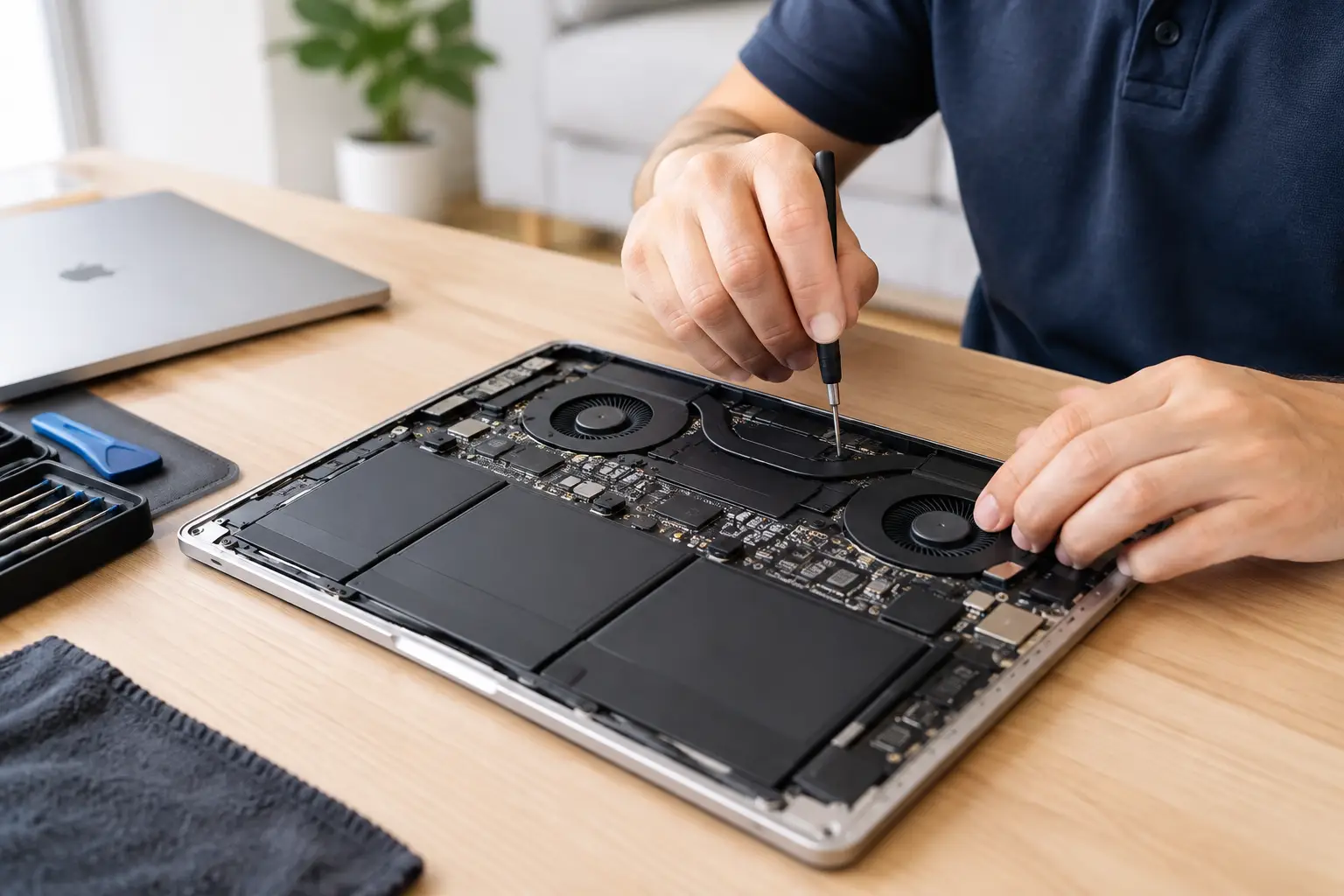

A MacBook that suddenly sounds like it is ready for takeoff is not just annoying. Loud, constant fan noise can be a warning that heat is building up inside your laptop. MacBook fan repair may be needed when the fan is clogged, failing, or working overtime because another component is creating too much heat.
The good news is that a noisy Mac does not always mean an expensive repair. Sometimes a simple software issue or a blocked air vent is the cause. Other times, waiting too long can put the battery, logic board, and important files at risk. Knowing the difference can save you money and downtime.
When Does a MacBook Need Fan Repair?
Your MacBook fan should turn on from time to time, especially while editing video, gaming, using many browser tabs, or charging. That is normal. The concern starts when the fan runs loudly during light use, stays on after you close demanding apps, makes rattling or grinding noises, or does not spin at all while the computer becomes very hot.
A worn fan can make a clicking, buzzing, scraping, or high-pitched whine. Dust buildup tends to cause a steady rushing sound as the fan struggles to move air through clogged vents. If the machine gets hot enough to slow down, freeze, shut off, or show a temperature warning, it needs attention soon.
Heat problems can show up differently depending on the model. Older Intel MacBooks often run warmer and use their fans more aggressively. Many newer Apple silicon MacBooks run quietly under normal workloads, so sudden fan activity on a model with a fan is worth checking. Some MacBook Air models have no internal fan at all. In that case, a loud sound may be coming from another source, not a fan.
Why Your MacBook Fan Is Running So Loud
The fan is doing one job: moving heat away from sensitive internal parts. When it is loud, the real issue may be the fan itself, or it may be responding to a heat source elsewhere in the computer.
Dust and blocked airflow
Dust, pet hair, and everyday debris can collect around the fan and heat sink. This is especially common in laptops used on couches, beds, blankets, workshops, or homes with pets. Soft surfaces can also block the bottom vents while you work, trapping heat where it should be escaping.
Cleaning the inside of a MacBook is more involved than wiping down the exterior. The bottom case must be removed with the correct tools, and the battery and nearby components need to be handled carefully. Compressed air used the wrong way can push debris deeper into the laptop or overspin the fan.
A failing fan motor or damaged blades
Fans are moving parts, which means they wear out. A damaged blade, failing bearing, or loose fan assembly can cause rattling, vibration, or intermittent fan operation. If a fan is physically failing, cleaning alone will not fix it. The part usually needs replacement.
A proper replacement also requires confirming that the fan is the actual problem. Replacing a part that was not at fault costs time and money without solving the overheating issue.
Heavy apps, browser tabs, or software problems
A runaway app can use a large amount of processor power and create more heat than usual. Video calls, photo editing, cloud syncing, games, browser tabs with autoplay video, and background updates can all make the fan work harder.
On a Mac, Activity Monitor can help identify what is using high CPU resources. Open it from Applications, then Utilities, and look at the CPU tab. If one unfamiliar process stays unusually high when you are not doing demanding work, it may be a software problem. Closing a stuck app, updating macOS, or restarting the computer can sometimes reduce fan noise quickly.
Malware is less common on Macs than many people think, but unwanted software, browser extensions, and background processes can still affect performance. If your Mac is loud, slow, and behaving strangely at the same time, a software check is a smart part of the repair process.
Battery or charging-related heat
A swollen or failing battery can generate heat and create a serious safety concern. Watch for a trackpad that feels raised or difficult to click, a bottom case that is bulging, unexpected shutdowns, or a MacBook that becomes hot while charging.
Do not press down on a swollen case or try to open the laptop yourself. Stop using it, unplug the charger if it is safe to do so, and arrange professional service. A battery issue should not be treated like a routine fan cleaning.
Safe Steps to Try Before a Repair Visit
Start by placing your MacBook on a hard, flat surface and making sure the vents are not covered. Disconnect accessories you do not need, close demanding programs, and restart the laptop. A restart clears many temporary software processes that can keep the processor busy.
Next, install available macOS updates and check Activity Monitor for apps that are consuming excessive CPU power. If a particular app consistently makes the fan surge, update that app or remove it if you no longer use it. Browser extensions are another common culprit, particularly outdated extensions that run in the background.
You can also check whether the noise changes when the MacBook is unplugged. If it gets much hotter only while charging, the charger, charging port, battery, or power management system may need inspection.
Avoid using household vacuums, poking through vents, or spraying liquids into the case. Also avoid fan-control apps that force the fan to run slower. They may make the MacBook quieter for a moment, but they do not fix the heat source and can allow internal temperatures to climb higher.
What Professional MacBook Fan Repair Includes
A reliable repair starts with diagnosis, not a guess. A technician should check the fan’s behavior, internal dust buildup, temperature sensors, battery condition, charging system, and software activity. The goal is to find out whether the fan is failing or whether it is reacting properly to another issue.
If the fan needs to be replaced, the repair involves opening the MacBook carefully, disconnecting internal power where appropriate, removing the failed fan, installing a compatible replacement, and testing the system under load. The technician should also inspect for debris and signs of liquid damage, corrosion, or heat damage around the logic board.
Cost depends on your MacBook model and the reason for the overheating. A cleaning and software tune-up can cost less than a fan replacement. A fan repair can cost less than a larger repair caused by months of heat stress. If liquid damage, battery swelling, or logic board trouble is involved, the scope changes. That is why an upfront assessment matters.
Do Not Wait if You Notice These Signs
Schedule service promptly if your MacBook shuts down from heat, has a burning smell, shows a battery warning, makes grinding fan noises, or becomes too hot to comfortably touch. Back up your files as soon as possible if the Mac will stay on long enough to do so. Heat-related issues can worsen without much warning.
For MacBook owners in Aston, Havertown, Media, Springfield, and nearby communities, CNA Computer Repair & Sales can inspect overheating and fan issues, explain the findings in plain language, and help you choose the most practical repair. You do not need to guess whether your MacBook needs a new fan, internal cleaning, battery service, or software cleanup.
A noisy MacBook is asking for attention. Get it checked before a small airflow problem turns into lost work, a damaged battery, or a laptop that cannot stay on when you need it most.
Leave a Reply