

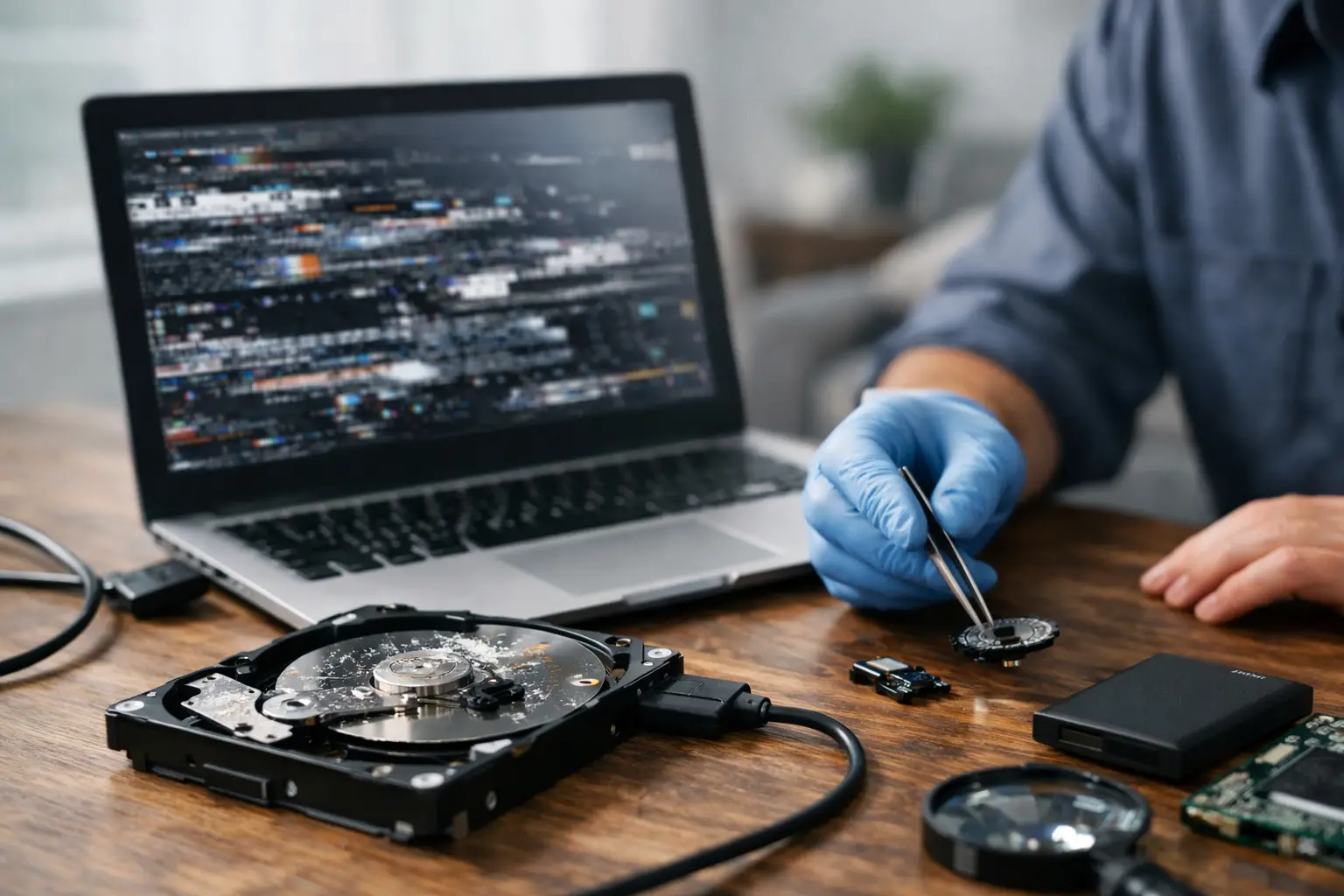

A computer that suddenly says a drive needs to be formatted can make your stomach drop. The photos, tax records, work projects, school files, and saved passwords on that device may feel one click away from disappearing. Corrupted drive recovery is often possible, but the first few decisions you make can greatly affect the result.
The most useful rule is simple: stop using the affected drive as soon as you notice a problem. Do not keep restarting it, downloading recovery programs onto it, or saving new files to it. A drive that looks empty, asks to be formatted, or will not open may still contain your data. Continued use can overwrite recoverable information or put extra strain on hardware that is already failing.
Corrupted Drive Recovery Starts With Stopping
Drive corruption does not always mean the drive itself is physically broken. Sometimes the file system, which is the structure that tells a computer where files belong, has been damaged. This can happen after a power outage, a forced shutdown, an interrupted update, malware infection, bad USB removal, or a system crash.
A hard drive or SSD can also have a physical problem. Traditional hard drives use moving parts and can fail after a drop, wear over time, or develop bad sectors. SSDs have no spinning parts, but they can still fail because of controller trouble, power issues, firmware errors, or worn storage cells. Macs, Windows PCs, external drives, and USB flash drives can all experience corruption.
The symptoms may look similar even when the cause is different. Your computer may freeze when you open a folder, show files with strange names, report that a drive is inaccessible, or ask you to format the disk before using it. You may also see a drive vanish from the computer completely.
Do not format the drive yet
When a computer offers to format a drive, it is trying to make the drive usable again. It is not confirming that your files are gone. Formatting can make recovery more complicated, especially if new data is written afterward. If the files matter, cancel that prompt and get the drive checked first.
The same caution applies to repair tools that promise a quick fix. Windows may suggest scanning and repairing a disk, while macOS may recommend a disk repair function. Those tools can be helpful for a minor logical issue, but they are not the best first move when the drive is making noises, disconnecting, or contains irreplaceable files. A repair attempt can change the disk structure before important data has been copied out.
What to Do Before You Try a Fix
A calm, careful response gives you the best chance of a successful recovery. Start by disconnecting an external drive safely. If it is an internal computer drive, shut the computer down rather than repeatedly forcing it to boot.
Avoid these common mistakes:
- Do not install recovery software onto the damaged drive.
- Do not save recovered files back to the same drive.
- Do not open the drive repeatedly if it clicks, grinds, or disappears.
- Do not put a hard drive in the freezer, hit it, or attempt to open it.
- Do not assume a blank-looking folder means the files have been erased.
If the drive is external, you can check a different cable or a different USB port once. A bad cable or weak port can look like drive failure. If the drive works normally on another computer, copy the most important files to a separate healthy drive immediately. Do not treat that as a long-term solution, though. A drive that has started acting unreliable deserves replacement after your data is protected.
For an internal drive, note the exact error message and whether the computer reaches the login screen. That information helps identify whether the issue is related to the drive, the operating system, or another component. If you hear clicking, buzzing, repeated spin-up sounds, or unusual heat from a traditional hard drive, power it off. Those are warning signs that software alone may not solve.
When Corrupted Drive Recovery Is Urgent
Some situations call for professional help right away. That is especially true when the drive contains business records, legal documents, family photos, client files, or a project with no backup. The goal should be to preserve the original data before attempting repairs that may reduce what can be recovered.
A technician can test whether the device is being recognized correctly, inspect its health information when available, and determine whether the problem is logical corruption or physical failure. For a working but corrupted drive, recovery may involve creating a safe copy of the drive and extracting files from that copy. This approach protects the original device from unnecessary stress.
If a drive has physical damage, recovery becomes more specialized. A failing hard drive may need controlled equipment and advanced methods to read data without causing further damage. The cost and likelihood of recovery depend on the drive type, the level of damage, the amount of overwritten data, and whether the drive was encrypted.
That last point matters. Many modern PCs and Macs use built-in encryption. Encryption is excellent for protecting privacy, but recovery may require the correct login, recovery key, or account information. Keep those details available if possible. Without the key, even recovered drive data may remain unreadable.
What a Good Recovery Process Looks Like
You should not have to guess what is happening to your files. A clear recovery process begins with an evaluation: Is the drive detected? Is it stable enough to copy? Is the damage likely software-related, or is the hardware failing?
Next comes protecting the data. When possible, the priority is to copy or image the drive before making changes. The recovered files should go to a separate drive, never back onto the original one. A technician can then review the recovered data with you, checking that the folders and files you need are present and opening properly.
Only after your data is secure should the original drive be considered for repair, reformatting, or replacement. In many cases, replacing a questionable drive is the smarter choice. A drive may appear to work after a repair, but if it has begun failing physically, it may fail again without warning.
CNA Computer Repair & Sales can help customers determine the next practical step without burying them in technical language. Whether the issue is a Windows desktop, MacBook, laptop, external hard drive, or SSD, the priority is straightforward: protect the files first, then get the device dependable again.
Recovery Is Not Always All or Nothing
People often ask whether every file can be recovered. The honest answer is that it depends. If corruption happened recently and the drive is still stable, the outlook can be very good. If files were deleted and the space was not reused, many may still be recoverable. If the drive has severe physical damage, has been repeatedly used after failure, or was fully overwritten, some files may be incomplete or unavailable.
Partial recovery can still be valuable. Even when a document loses its original folder name or a photo collection needs sorting, the content itself may be saved. A good recovery effort focuses first on the files that matter most, not just on producing the largest number of recovered items.
Protect Your Next Drive Before Trouble Starts
The best backup is the one you will actually use. Keep important files in at least two places, such as your computer and an external backup drive, or your computer and a trusted cloud backup service. Automatic backups remove the pressure of remembering to copy files every week.
It also helps to replace aging drives before they become an emergency. Slow performance, frequent freezes, random file errors, and repeated disk warnings are reasons to act early. If your computer is older and still uses a traditional hard drive, upgrading to an SSD can improve speed while giving you a fresh place for your data.
If your drive is showing errors right now, do not wait for it to get worse. Turn it off if it is unstable, keep the original device intact, and get a clear assessment before trying quick fixes. The right first step can be the difference between a stressful computer problem and getting the files that matter back where they belong.
Leave a Reply