

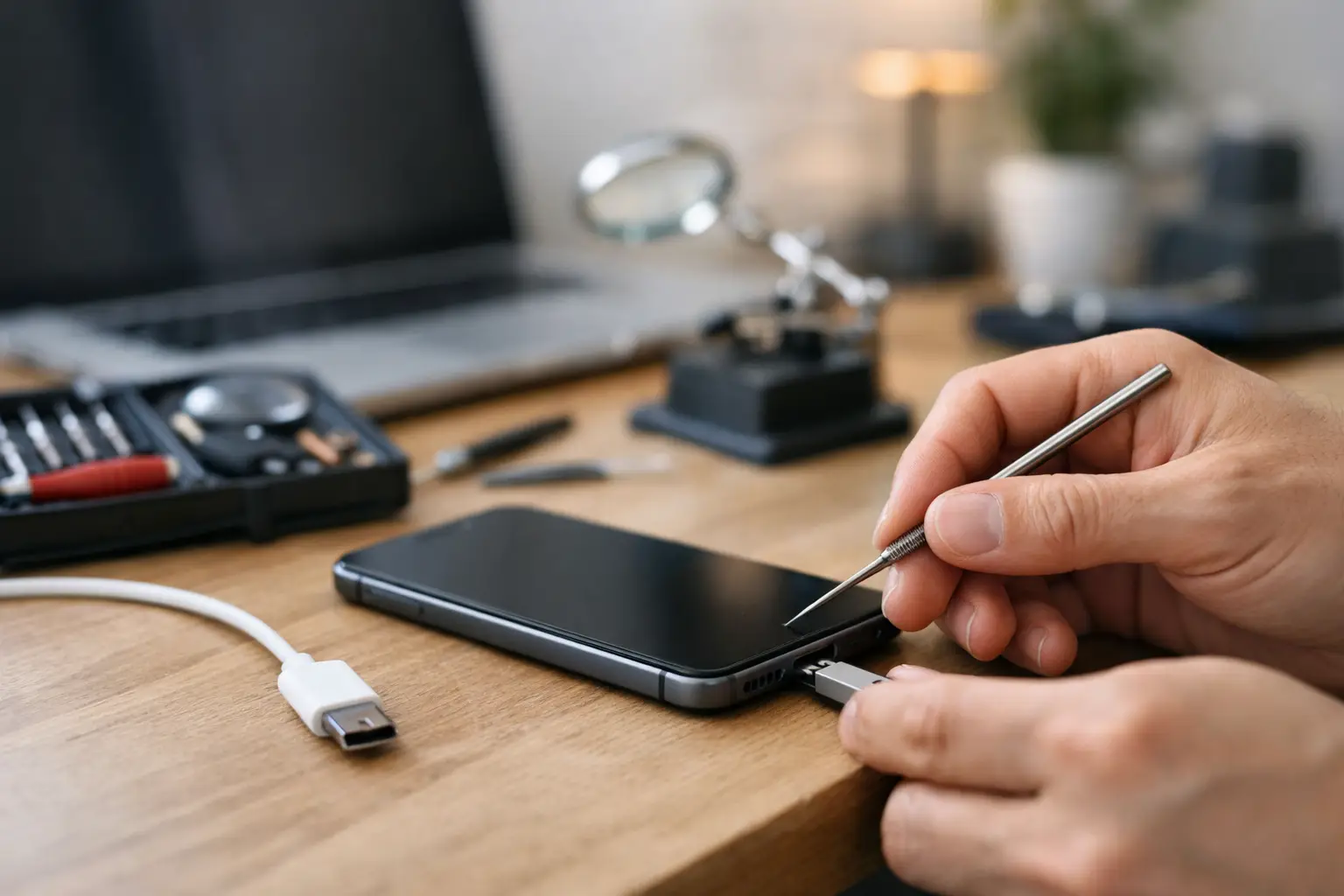

A phone that only charges when the cable is bent at a strange angle is not just annoying. It can leave you without a working alarm, payment app, school assignment, or way to reach family. The best fixes for charging port problems usually start with a few safe checks at home, but a loose, damaged, or wet port needs professional attention before a small issue turns into a dead device.
Start With the Simple Things That Cause Most Problems
Before assuming the charging port is broken, test the parts around it. Charging cables wear out internally, especially near the connector ends. A cable may look fine while its wires are damaged inside. Try a different cable that you know works, then try a different wall adapter and outlet.
For phones and tablets, use a charger with the correct power rating. A weak adapter may charge very slowly, while a low-quality or damaged cable can connect and disconnect repeatedly. If your device supports wireless charging and it works normally on a wireless pad, that is a useful clue that the battery and charging system may be okay while the wired port needs attention.
Laptop owners should be especially careful here. Do not substitute a random charger just because the plug fits. An incorrect voltage or poor-quality replacement adapter can damage the charging circuit. If possible, test with the manufacturer-approved charger for your laptop model.
Best Fixes for Charging Port Issues: Clean It Safely
Pocket lint is one of the most common reasons a phone stops charging properly. It gets packed into USB-C, Lightning, and Micro-USB ports over time. The charging cable then cannot seat fully, so it feels loose or falls out easily.
First, power the device off. Shine a flashlight into the port and look for compacted debris. Use a dry, non-metal tool such as a wooden toothpick or plastic pick to gently lift lint away from the bottom and sides of the port. Work slowly. You are trying to remove debris, not scrape the metal contacts.
Do not use a paper clip, sewing needle, knife, or any other metal object. Metal can bend the internal pins, create a short, or permanently damage the port. Avoid blowing into the port with your mouth as well. Moisture from your breath does not help electronics.
Compressed air can help with loose dust, but use short, controlled bursts and keep the can upright. It will not always remove tightly packed lint. If the connector still does not click into place after a careful cleaning, stop forcing it. The port could be worn, bent, or broken.
Check for Moisture Before Plugging Anything In
If the problem started after rain, a spill, a bathroom accident, or a device falling into water, do not keep testing chargers. Many newer phones detect moisture in the charging port and block charging to protect the device. That warning is doing its job.
Disconnect the cable, turn the device off if possible, and let it air-dry in a cool, dry area with the port facing downward. Do not use a hair dryer, put the device in an oven, or bury it in rice. Heat can damage batteries and seals, while rice can leave dust and starch in the port.
Water damage is unpredictable. A device may appear to work after drying but develop corrosion later. If you see discoloration in the port, smell something burnt, notice heat while charging, or have ongoing moisture alerts, it is time for a repair inspection.
Know the Signs of a Damaged Port
A charging port is a physical part that takes daily wear. Repeatedly pulling a cable sideways, using a device while it is plugged in, or forcing the wrong connector can loosen the port or damage its contacts.
A damaged port often has clear symptoms: the cable wiggles excessively, charging cuts in and out, the connector will not stay inserted, or the device only charges at one angle. You may also see a bent center tab, missing pins, or debris that cannot be safely removed.
Do not keep bending the cable to find the one position that works. That can stress the port further and may damage the charging cable or internal board. A professional charging port repair can be more affordable than waiting until the device no longer powers on at all.
Phone and tablet ports
On a phone or tablet, the charging port is usually a replaceable component, though the repair process varies by model. Some devices require careful screen removal and battery disconnection to reach the part. This is not a good first DIY project if you do not have the right tools, replacement parts, and experience.
Laptop power jacks
Laptop charging issues can be more complicated. A loose power jack may be a separate replaceable part, a cable-connected DC jack, a USB-C charging port, or part of the motherboard itself. The battery, charger, charging circuit, and operating system can also cause similar symptoms. Proper testing matters before replacing anything.
Rule Out Battery and Software Problems
A charging symbol does not always mean the battery is actually gaining power. If the percentage stays frozen, drops while plugged in, or the device dies as soon as it is unplugged, the battery may be worn out. Older batteries can also swell, creating pressure inside the device.
If you notice a lifting screen, separated back cover, unusual heat, or a bulge in the case, stop charging the device immediately. A swollen battery is a safety issue and should be replaced professionally.
For laptops and some phones, a software glitch can interfere with charging detection. Restart the device after trying a known-good charger. Check whether the charging message changes, whether the battery icon appears, and whether the device recognizes a USB connection to a computer. Software updates can help in some cases, but they will not repair a loose or physically damaged port.
When a Repair Is the Better Fix
Home troubleshooting makes sense when the issue is clearly a bad cable, dirty port, or temporary software hiccup. Repair is the smarter choice when the port is loose, the device has been exposed to liquid, charging is intermittent with multiple known-good chargers, or there are signs of heat, corrosion, or battery swelling.
A technician can inspect the port under magnification, test the charging path, and determine whether the real problem is the connector, battery, power jack, charging board, or motherboard. That prevents spending money on parts that will not solve the issue.
For customers in Aston, Havertown, and nearby communities, CNA Computer Repair & Sales can diagnose charging problems on phones, tablets, laptops, and computers with straightforward advice and repair options. Getting the issue checked early can often save your data, your device, and the cost of a more extensive repair later.
Help Your Charging Port Last Longer
Once your device is charging normally again, a few habits can reduce future port trouble. Pull the cable out by the connector, not the cord. Keep your phone out of lint-heavy pockets when possible, and do not use a cable that is frayed, bent, or loose at either end.
Try not to place strain on a plugged-in phone or laptop. Watching videos, gaming, or working with a cable sharply bent against the port puts pressure exactly where the connection is most fragile. Use quality chargers designed for your device, and keep liquids away from charging areas.
A charging port problem does not always mean you need a new phone or laptop. Start with a safe cable test and careful cleaning, then get help quickly if the connection is loose, wet, hot, or unreliable. The right repair can get your everyday device back to work without the runaround.
Leave a Reply