

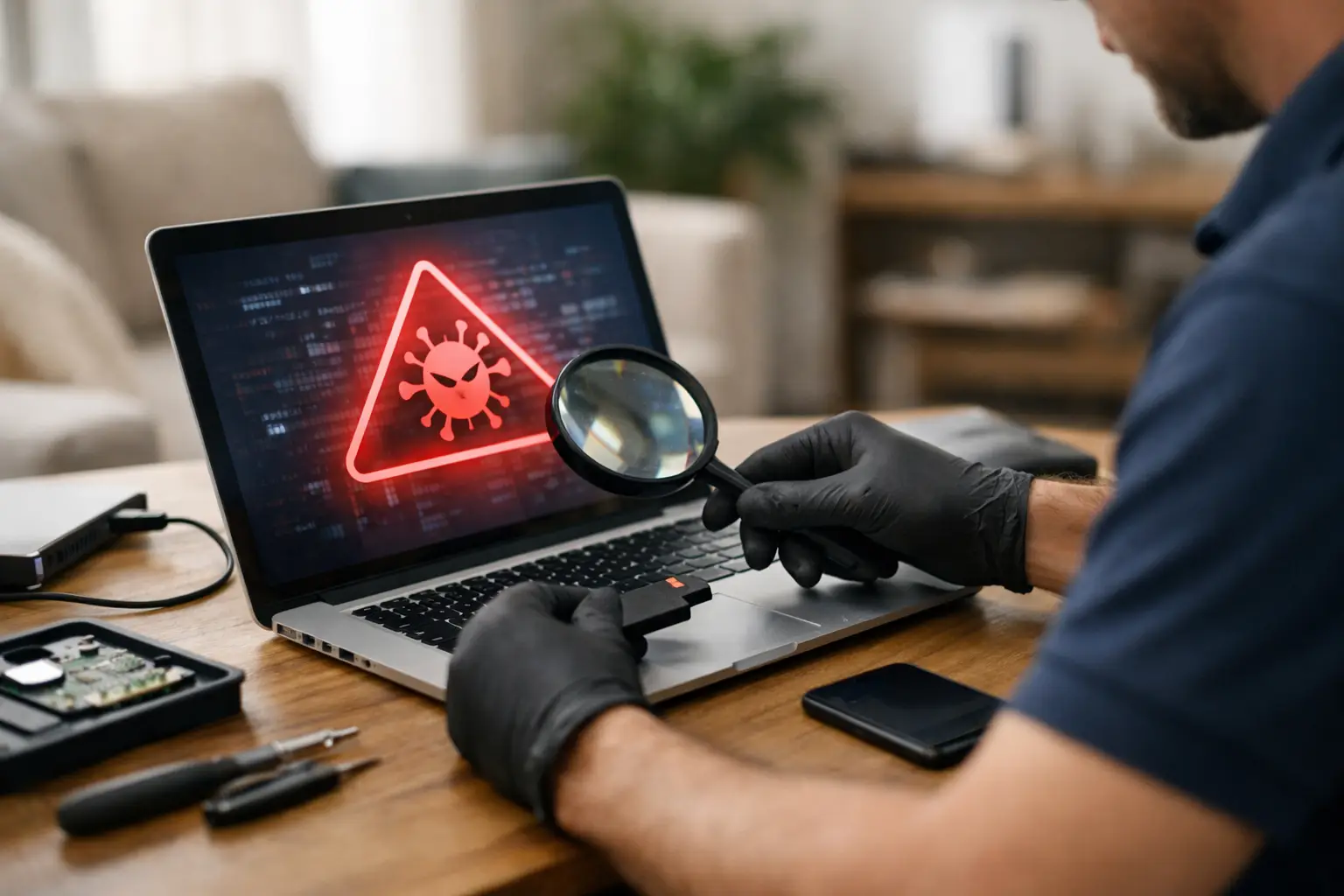

Your computer starts showing pop-ups, running painfully slow, or sending emails you never wrote. That is when knowing how to remove malware safely matters. The wrong move can erase family photos, expose saved passwords, or leave part of the infection behind to return later.
Malware is not always obvious. Some infections lock your screen and demand money. Others quietly collect passwords, banking details, and personal information in the background. Whether you use a Windows laptop, Mac, desktop, Android phone, or tablet, the goal is the same: stop the infection, protect your accounts, and get the device working normally again without making the problem worse.
First, Disconnect the Device From the Internet
If you suspect malware, turn off Wi-Fi or unplug the Ethernet cable before you start clicking around. This can prevent the infection from sending data out, downloading more malicious files, or spreading to other devices on your home network.
Do not sign in to your bank, email, social media, or work accounts from the affected device. If you need to change passwords, use a different device you trust, such as another computer or your phone if it is not showing any signs of infection.
A few warning signs are worth taking seriously: constant pop-ups, unfamiliar browser extensions, a homepage that keeps changing, programs opening on their own, sudden slowdowns, security warnings that look strange, or friends receiving suspicious messages from you. One symptom does not always mean malware, but several at once should not be ignored.
Do Not Trust Pop-Ups That Claim to Fix the Problem
A common scam begins with a frightening message saying your computer is infected and you need to call a number or install a “cleaner” immediately. Close the browser window if you can. If it will not close, restart the computer rather than calling the number or allowing remote access.
Legitimate security software does not usually demand payment through a pop-up, ask for gift cards, or insist that a stranger connect remotely to your computer. These messages are designed to create panic. Slow down, disconnect from the internet, and get a second opinion before you enter a password, credit card number, or phone number.
The same applies to unexpected texts and emails. Do not open attachments or follow links promising a refund, package update, account warning, or urgent invoice unless you independently verify the sender.
Back Up Important Files Carefully
Before removing malware, you may want to save irreplaceable files such as photos, documents, schoolwork, and local business records. That is smart, but copy selectively. Backing up every program, download, and unknown file can carry the infection to your backup drive.
Focus on personal files such as documents, pictures, videos, and PDFs. Avoid copying unfamiliar executable files, software installers, browser extensions, or folders full of random downloads. Use an external drive only long enough to make the backup, then disconnect it from the computer.
If ransomware has encrypted your files, do not rush to pay. Payment does not guarantee that criminals will restore your data, and it can encourage further attacks. A repair professional may be able to identify the type of ransomware, check whether recovery options exist, and determine whether a clean backup can restore your files.
How to Remove Malware Safely on a Computer
Start by restarting the computer and running a full scan with reputable, up-to-date security software already installed on the device. A full scan takes longer than a quick scan, but it checks more areas where malware can hide. Let the scan finish, then quarantine or remove the items it identifies.
If the computer is too unstable to scan normally, starting in Safe Mode can help. Safe Mode loads only essential software, which may prevent some malicious programs from launching automatically. From there, run the security scan again and remove suspicious recently installed apps that you do not recognize.
After cleanup, update your operating system, web browser, and security software. Old versions often have known security holes that malware uses to get in. Also review browser extensions, your homepage, search engine settings, and installed applications. Remove anything you did not intentionally install.
A scan can remove many common infections, but not every one. Some malware hides in startup settings, system files, scheduled tasks, or compromised browser profiles. If pop-ups continue, antivirus software will not update, your browser keeps redirecting, or the computer remains unusually slow, stop trying random fixes. Repeatedly installing different free cleaners can create more confusion and sometimes adds unwanted software of its own.
Malware on Macs, Phones, and Tablets Is Different
Mac users can get malware too, especially through fake updates, questionable downloads, pirated software, and deceptive browser notifications. Remove unfamiliar applications, check login items and browser extensions, update macOS, and run a trusted security scan if symptoms continue. Do not assume the Apple logo alone means a device cannot be infected.
On iPhones and iPads, true malware is less common, but scam pop-ups, risky profiles, suspicious calendar subscriptions, and compromised account passwords can look similar. Update iOS or iPadOS, delete unfamiliar apps and profiles, clear suspicious browser data, and change account passwords from a known-safe device. If the phone is jailbroken, the risk is higher and professional help is a good idea.
Android phones face a wider range of malicious apps. Remove recently downloaded apps you do not recognize, review app permissions, update Android, and scan with reputable mobile security software. An app that asks for accessibility access, device administrator rights, or permission to read everything on your phone deserves extra scrutiny, especially if it came from outside the official app store.
Change Passwords After the Device Is Clean
Removing malware is only part of the job. If an infection captured a password, changing it before cleaning the device may simply give the new password to the attacker. Once you are confident the device is clean, change passwords for your email first. Your email account is often the key to resetting passwords everywhere else.
Then update passwords for banking, shopping, social media, cloud storage, and work accounts. Use a different, strong password for every account, and turn on two-factor authentication wherever available. Check your accounts for unfamiliar logins, changed recovery email addresses, forwarding rules, purchases, or messages.
If you entered card information into a suspicious site or notice transactions you do not recognize, contact your bank or card provider immediately. Fast action can limit the damage.
When a Professional Malware Removal Is the Safer Choice
DIY cleanup makes sense for a mild browser issue that disappears after a scan and update. It is not the best choice when important data, financial information, business files, or multiple devices may be involved. The trade-off is simple: free tools can save money on a straightforward infection, but a partial cleanup can cost far more if it leads to identity theft, lost files, or a system that fails again next week.
Get help if you see ransomware, cannot log in, keep getting redirected online, suspect remote access was granted, or notice that your accounts have been compromised. A technician can scan beyond the obvious symptoms, remove persistent threats, help preserve data, and make sure the device is safe to use again.
For local customers who need a clear answer instead of a runaround, CNA Computer Repair & Sales can diagnose malware issues and explain the next step in plain language. You should not have to guess whether your computer is clean or wonder if your personal information is still at risk.
Prevent the Next Infection With a Few Habits
Keep automatic updates turned on, use reputable security software, and back up important files regularly. Be selective about downloads, attachments, browser notifications, and unfamiliar USB drives. Free software is not automatically dangerous, but software from unknown sites often comes bundled with unwanted extras.
Most infections rely on a rushed click, an old program, or a password that was already exposed elsewhere. Pause when something feels off. A five-minute check before you open a file can save hours of cleanup later – and protect the files and accounts you cannot afford to lose.
Leave a Reply