

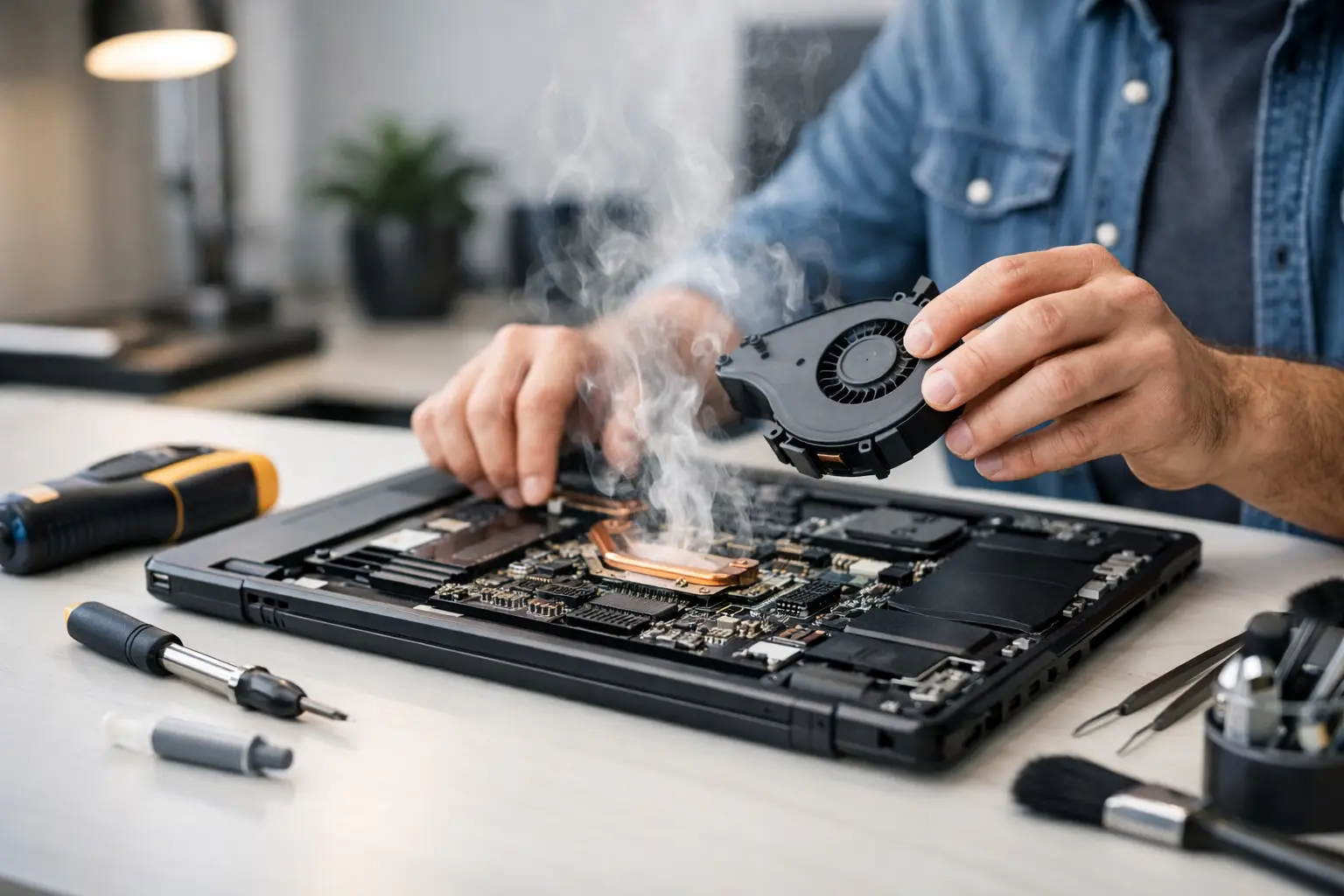

A laptop that gets hot enough to make your desk uncomfortable, slow down during a video call, or shut off without warning needs attention. Knowing how to fix laptop overheating starts with separating a normal warm laptop from one that is struggling to cool itself. You do not need to take apart your computer at the first sign of heat, but you should not ignore repeated overheating either.
Some heat is normal when you are gaming, editing video, charging, or running several programs at once. The concern is heat paired with loud fans, lagging performance, a hot keyboard or bottom panel, random restarts, battery drain, or an error message that the computer needs to shut down. Those signs can point to dust buildup, a failing fan, software using too much processing power, or an internal repair issue.
Start With the Simple Fixes for Laptop Overheating
Before assuming you need a new laptop, change where and how you use it. Cooling vents are usually located along the bottom, side, or back edge of the case. If those vents cannot pull in fresh air, heat stays trapped inside.
Use your laptop on a hard, flat surface such as a desk or table. Beds, couches, blankets, and even your lap can block bottom vents in minutes. If you regularly work from the sofa, a stable lap desk can make a real difference. Avoid using the laptop in direct sun, near a heat register, or in a hot car.
Next, shut the computer down completely and let it cool for 15 to 30 minutes. Restarting a very hot laptop immediately may trigger another shutdown before you can identify the cause. Once it has cooled, listen closely after turning it back on. A fan that never starts, makes grinding or rattling sounds, or runs at maximum speed all the time deserves a closer look.
A cooling pad can help if your laptop runs warm during long work sessions, but it is not a cure for a blocked vent or failed internal fan. Think of it as extra airflow, not a replacement for proper repair.
Clean the Vents Carefully
Dust is one of the most common reasons laptops begin overheating after months or years of normal use. Pet hair, lint, and dust collect around the intake vents, fan blades, and heatsink. The fan may still be spinning, but it cannot move enough air through the system.
With the laptop powered off and unplugged, inspect the exterior vents with a flashlight. Use short bursts of compressed air to clear loose dust from the openings. Keep the can upright so moisture does not spray into the laptop, and do not hold the nozzle directly against the vent. A soft brush can help remove buildup around the outside edges.
Do not use a household vacuum inside the vents. It can create static electricity and may damage delicate components. Also, avoid pushing a paper clip, toothpick, or other object into the vent. That can bend fan blades or force debris deeper inside.
If the vents look clean but the laptop still overheats, the dust may be packed around internal components where exterior cleaning cannot reach. Opening a modern laptop can involve fragile clips, tiny screws, and cables that are easy to damage. This is often the point where a professional internal cleaning is the safer and more affordable option.
Check What Is Making Your Laptop Work So Hard
Sometimes the cooling system is fine, but the laptop is being asked to do too much. A single stuck program, browser tab, background update, or malware infection can drive processor usage high enough to create constant heat.
On a Windows laptop, open Task Manager by pressing Ctrl + Shift + Esc. Look at the Processes tab and sort by CPU usage. If one program is consistently using a large percentage of your CPU while you are doing very little, close it and see whether the fan settles down. On a Mac, use Activity Monitor and review the CPU column for the same kind of behavior.
Web browsers are frequent culprits, especially with dozens of tabs open, streaming video, online meetings, and unnecessary extensions running together. Close tabs you no longer need, quit unused apps, and restart the laptop. A restart clears many temporary processes that continue running quietly in the background.
If high CPU usage returns every time the computer starts, do not just keep closing the program. Update the program, remove suspicious browser extensions, and run a trusted malware scan. Viruses and unwanted software can cause overheating by using system resources constantly, even when the screen appears idle.
Update Software, Drivers, and Power Settings
Outdated software can make a laptop work harder than it should. Install pending operating system updates and updates for commonly used programs. For Windows computers, graphics and chipset drivers can affect power use and fan behavior, especially after a major system update.
Check your power mode as well. A high-performance setting can keep the processor running at higher speeds, which produces more heat. If you are writing documents, browsing, or checking email, switch to a balanced or recommended power setting. You may notice slightly less speed during demanding tasks, but the laptop should run cooler and the battery may last longer.
For gaming or creative work, some heat and fan noise are expected. Lowering game graphics settings, reducing screen brightness, closing background apps, or limiting long sessions while the laptop is plugged in can reduce the load. The right choice depends on whether you need maximum performance or a cooler, quieter machine at that moment.
Know When the Problem Is Inside the Laptop
External cleaning and software checks will not fix a failing fan, dried thermal paste, loose heatsink, damaged temperature sensor, swollen battery, or liquid damage. These are internal problems that can get worse if the laptop keeps running hot.
Stop using the laptop and arrange repair if you notice any of these warning signs:
- The computer shuts down or restarts repeatedly, especially during basic tasks.
- The fan grinds, clicks, rattles, or does not run at all.
- The bottom case is bulging, the trackpad is lifting, or the battery area looks swollen.
- You smell burning plastic, see smoke, or notice severe heat near the charging port.
- The laptop overheats even when it is sitting idle with few or no programs open.
A swollen battery is not a wait-and-see problem. Do not press on the case, puncture the battery, or continue charging the laptop. Power it down and have it inspected promptly.
Do Not Keep Pushing Through Random Shutdowns
Your laptop shuts down to protect itself when internal temperatures reach an unsafe level. That safeguard is useful, but repeated heat shutdowns can interrupt work, corrupt open files, shorten battery life, and put extra stress on components. If the computer contains family photos, schoolwork, tax records, or small-business files, back up important data as soon as it stays on long enough to do so.
Be cautious with online advice that tells you to replace thermal paste or remove the entire cooling assembly yourself. Those repairs can be reasonable for an experienced technician, but they are not universal DIY jobs. Many newer laptops use tightly packed designs, and a small mistake can damage a cable, motherboard connector, or battery.
Get Fast Help When Cleaning Is Not Enough
If you have cleared the vents, reduced the workload, and the laptop is still running hot, a repair technician can test the fan, inspect the heatsink, check for battery problems, remove internal dust safely, and identify whether software or hardware is causing the heat. That is usually faster than replacing parts based on guesswork.
For customers in Aston, Havertown, and nearby communities, CNA Computer Repair & Sales can inspect overheating laptops and explain the issue in plain language before moving forward with repairs. You should know what is wrong, what the repair involves, and what it will cost – without being pushed into replacing a laptop that may still have plenty of life left.
A cool-running laptop is not just more comfortable to use. It is more dependable when you need it for work, school, appointments, and everything else that cannot wait.
Leave a Reply